
A label that comes out sideways is usually caused by a mismatch between the label file's page size and your label size, for example, an 8.5x11 label printed on a 4x6 label. Fix the label format at the source first, then check the orientation setting in the printer driver.
1. Try to print this Rollo sample label
2. If the sample prints in the correct direction, your printer settings are fine. The problem is your label file's format, so continue with Step 2.
3. If the sample also prints sideways, skip to Step 4 (Windows printer settings)
If the print preview already looks sideways, it will print sideways. Set your platform to generate labels at the size of your labels.
Check if your shipping platform can provide 4 x 6 labels in the correct orientation. We have How-Tos for the most popular platforms on this link.
Step 3: Rotate or crop an already generated label
Some shipping platforms only provide you with a full page (8.5" x 11") document. See this link to crop your label.1. Go to Printers & Scanners, select the Rollo printer, click Manage, then Printing Preferences.
2 . Open the Settings tab.
3. Set Orientation to Normal.
4. Set Print Position Adjustment (Horizontal and Vertical) to 0.
5. Click Apply, then OK, and print again.
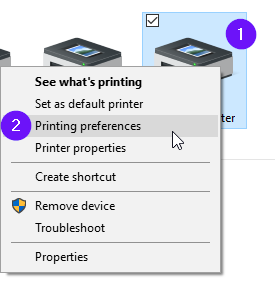
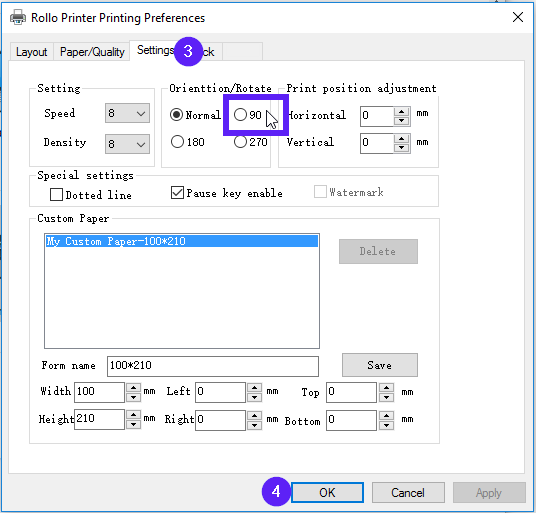
If your label is 4 x 6 but just provided sideways, you can setup Rollo to rotate it for you automatically.
- On Mac
During the print prompt, select your label size under Presets, then navigate to Printer Features -> Page Options and Select "0" under "Rotate."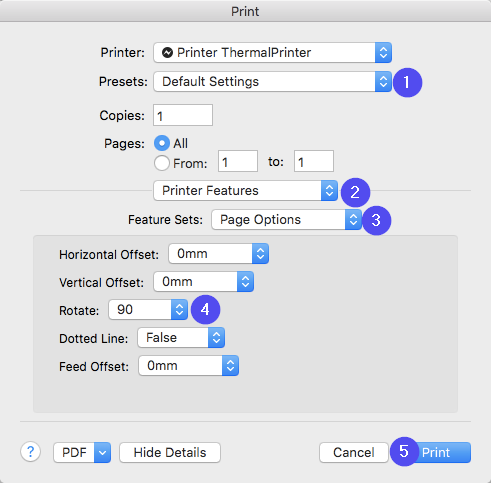
If your labels open in Adobe Reader inside the browser and print sideways from there, try printing from the browser itself instead.
1. In Chrome, click the puzzle icon at the top right, click the three dots next to the Adobe Reader extension, and choose Remove. Or go to Chrome's Menu, More Tools, Extensions, and remove it there.
2. If the label is a saved file, right-click it, choose Open With, and pick your browser, then print from the browser using the system dialog.
The sideways cause and fix are the same on every platform: the label file's format has to match your label size. On Mac and in the Rollo mobile app, there is no separate orientation switch to change, so use Steps 1 to 3 above. Make sure the label is 4x6 (or your label size) before printing, and rotate the file in Acrobat if it was generated sideways.
Still stuck? Reach out to our team through chat support, and we will walk you through it.