
Faded or light labels are almost always fixed by cleaning the print head, raising the darkness (density) setting for your device, and checking your label stock. Rollo prints with heat, not ink, so a light print never means you are out of ink.
Step 1: Clean the print head
Dust, label dust, and adhesive residue on the print head are the most common causes of faded prints, white streaks, and white spots.
1. Turn the Rollo off with the switch on the back and unplug the power adapter. Let it cool down.
2. Open the printer cover and remove the labels.
3. Wipe the print head (the thin horizontal metal strip inside the top cover) with a 70% isopropyl alcohol pad or a lint-free cloth with alcohol. Alcohol pads came in the box with your printer, and any pharmacy sells them.
4. Clean the rollers too. Rotate them with your thumb so you cover the whole surface. Look for white dust, sticker residue, or stuck bits of label.
5. Caked-on dirt can take a few passes with a 70% isopropyl alcohol pad or a lint free cloth with alcohol, so be thorough.
6. Let everything air dry for 2 to 3 minutes before closing the cover.
7. Reload your labels with the printable (peelable) side facing up and print again.
Step 2: Check the power adapter
1. Use the original Rollo power adapter that came with the printer. Third-party adapters can cause light printing.
2. Plug the adapter directly into a wall outlet, not a power strip or extension cord.
Step 3: Raise the darkness setting
The darkness (also called density) control lives in a different place on each device.
Windows
1. Go to Printers & Scanners, select the Rollo printer, then Printing Preferences.
2. Click Settings.
3. Set Density to 10 and Speed to 4, click Apply, then OK.
4. Still light? Raise the density a step or two (customers have used 12 to 15) and lower the speed to 2 or 3. Lower speed gives the print head more time to heat each label.
5. For Wireless Rollo: If the darkness setting makes no difference at all, Windows may be using a generic driver instead of the Rollo driver. Please add the printer manually, you may follow the steps on this link - Any changes made in settings within the Rollo app/RPSP will not reflect to Windows computer added via auto detection.
Mac
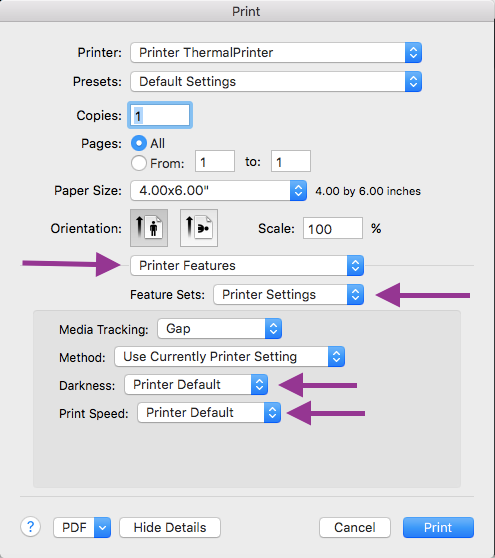
1. Open your label and click Print. If you are using Google Chrome, click Print using system dialog, then continue to the next step.
2. In the print window, open the Printer Options and click Printer Features (i).
3. Under Feature Sets, choose Page options.
4. Increase the Darkness value (try 8) and lower the Speed.
5. Save these choices as a Preset so you do not have to set them every time.
iOS App/Android App
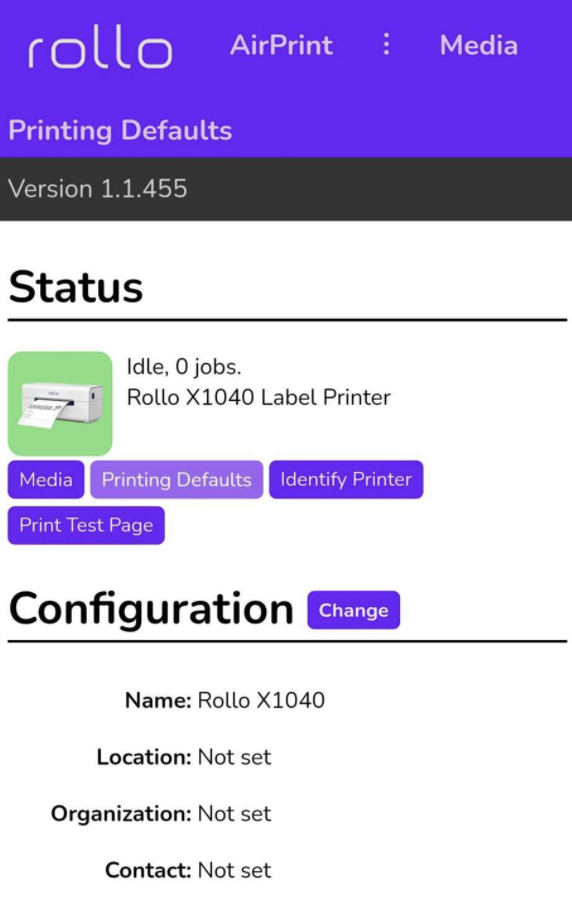
1. Open the Rollo app and click Menu.
2. Select Rollo Printer, then choose Default Rollo Printer and Settings.
3. Once the Rollo Printer portal opens, click Printing Defaults.
4. Go to Printing Defaults, increase the Darkness, and tap Save Changes.
5. Print again.


Step 4: Print the Rollo sample label
This tells you whether the problem is the printer or the label file.
1. Go to rollo.com/sample and print the sample 4x6 label.
2. If the sample prints dark and clear, your printer is fine. The problem is the file you are printing. Download the label as a PDF (not a screenshot or image file) and print it from Adobe Acrobat Reader or Google Chrome. PDFs print sharper than JPG images on thermal printers.
3. If the sample is also faded, continue to the next step.
Step 5: Check your label stock
1. Use direct thermal labels. Rollo does not use ink, so the darkness comes from the label's heat-sensitive coating.
2. Check the label quality and how long they have been stored. Low-quality or older labels may print lighter. Unused labels generally last 9–12 months when stored properly.
3. If the fading started right after you loaded a new roll or batch of labels, the batch itself is the most likely cause. Try a different roll or a different batch to compare.
4. Some coated third-party labels shed their coating onto the print head as residue, which then causes fading. Clean the print head, and if residue keeps building up, lower the density slightly and consider switching label brands.
Step 6: Recalibrate and run a self-test
1. Turn the printer off, then back on, with at least 10 labels loaded from the back, printable side up.
2. Press and hold the circular button on top, or the R button on your Rollo, until you hear one beep, then release. The labels will move back and forth while the printer learns the label size.
3. Press and hold the same button again until you hear two beeps, then release. The printer will print a self-test page.
4. If the self-test page is dark and clear, try printing your label again.
Still faded, or a white line in the same spot every time?
If you have cleaned the print head and the same white line or faded zone appears on every label in the same place, the print head may be damaged. This is a hardware issue, not a settings issue. Contact support so we can check the printer and your warranty options.
Still stuck? Reach out to our team through chat support, and we will walk through it with you.