
Quick answer
To print your first label, sign in at ship.rollo.com, click + CREATE QUICK SHIPMENT (top right), enter From and To, describe your package, compare rates, and click Buy label. Your first 200 labels have no label fee; you still pay the carrier for postage. When you print with a Rollo printer, Rollo Ship labels print directly in 4x6 shipping label format.
Read the full guide: Buy your first Rollo Ship label
Steps
- Create an account or log in. Sign up or log in. When you sign up, choose your country: the United States is the default, so switch it if you ship from Canada. Your country sets the currency of your shipping rates and the carriers you see.
- U.S.: USPS and UPS are built in, with discounted rates. Connect your own FedEx account to compare your own account's rates, with no Rollo discount.
- Canada: Canada Post and UPS are built in, with discounted rates. Connect your own FedEx or Purolator account to compare your own account's rates, with no Rollo discount.
- Start a shipment. On Home, click + CREATE QUICK SHIPMENT in the top right. You can also use the Create shipment From and To fields on Home.
- Enter the addresses and package. Enter From and To, choose a package type, and enter the dimensions and weight. Click Continue.
- Compare rates and buy. On Summary, pick a service and click Buy label, then follow the on-screen prompts. If your wallet balance can't cover postage, add funds in Billing first. Rates can change, and a carrier can re-rate a label after purchase.
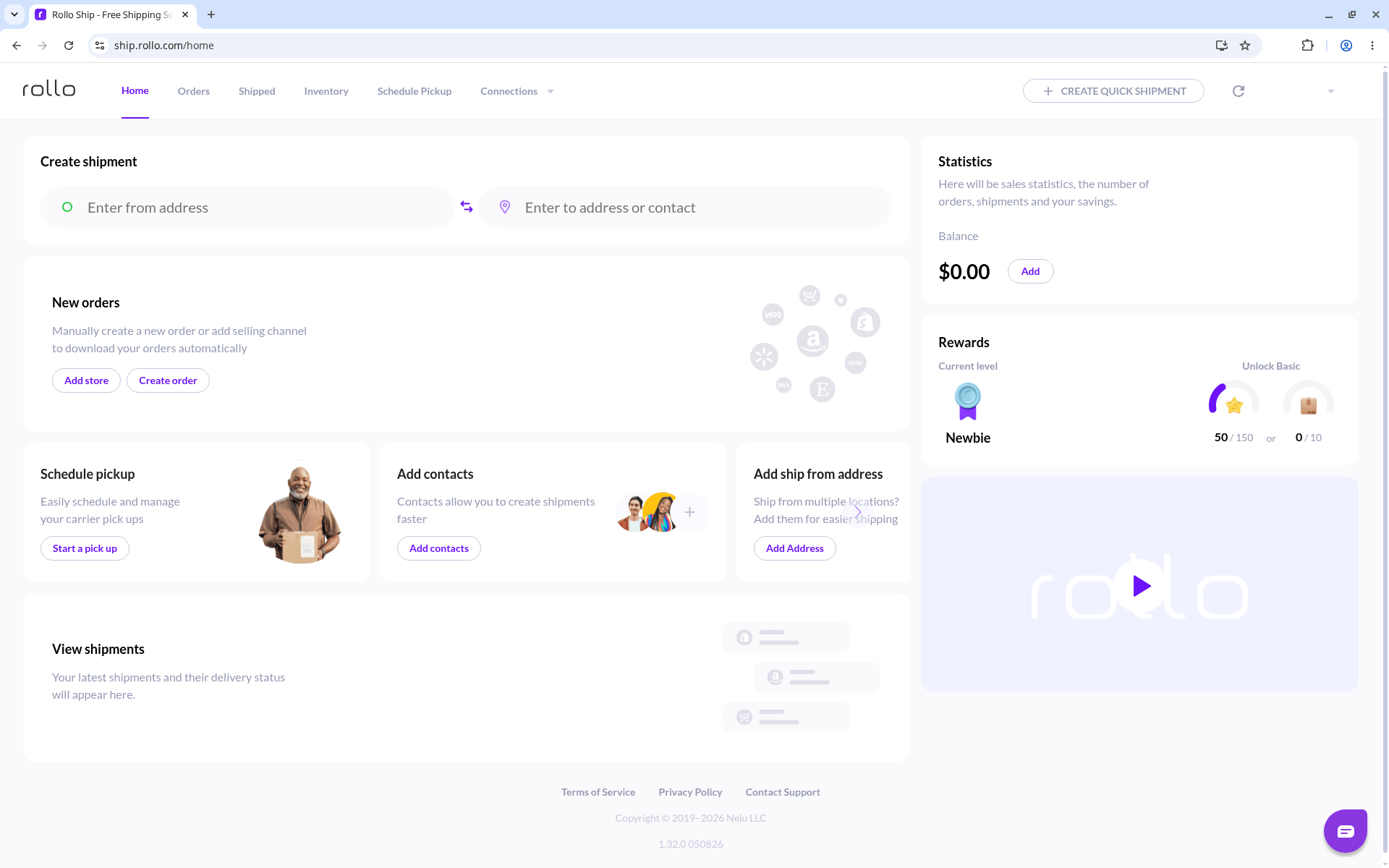
Home: click + CREATE QUICK SHIPMENT in the top right.
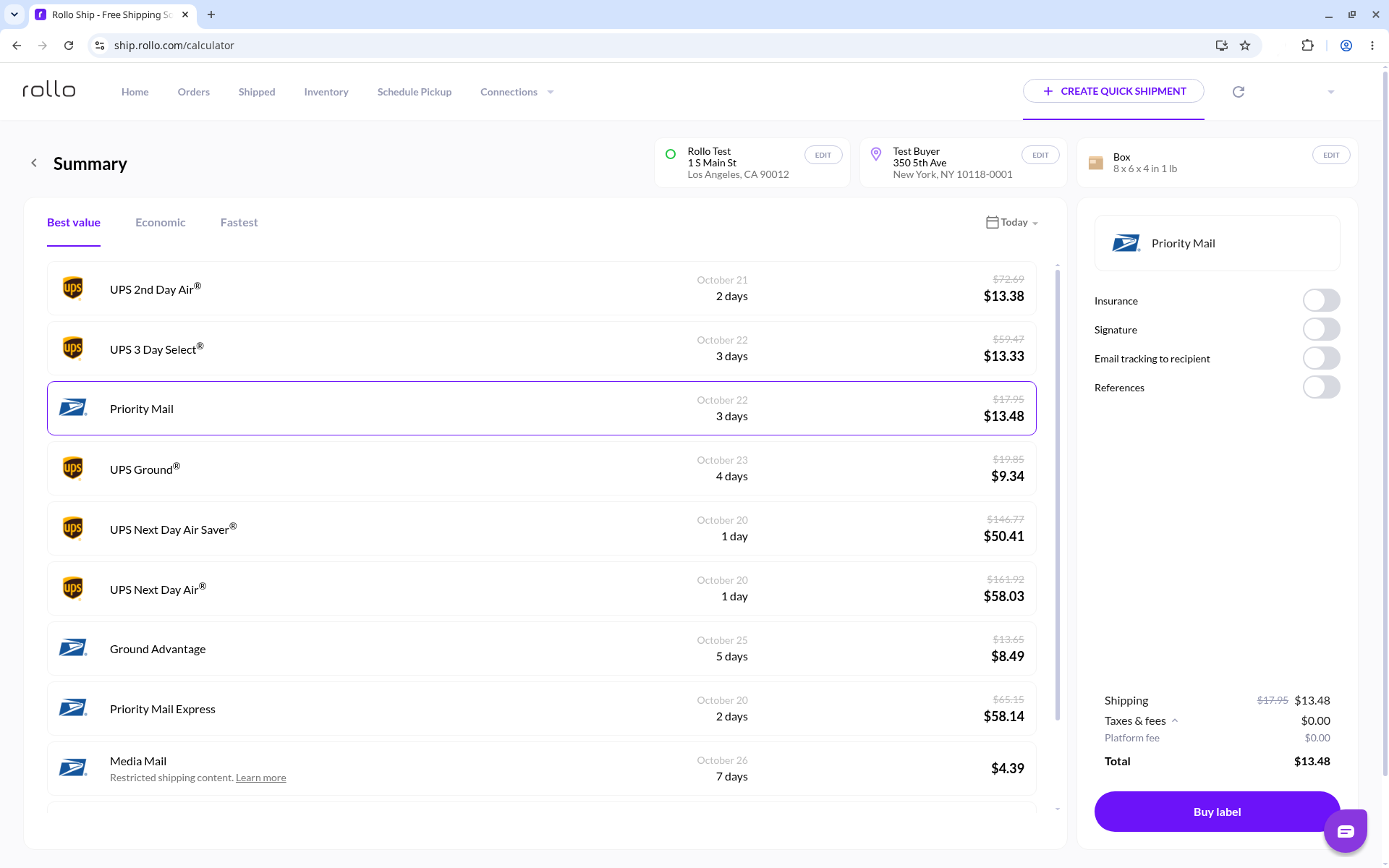
Summary: compare rates, then click Buy label.
Shipping store orders? In the top navigation, open Connections to connect your selling channels. Your orders are imported automatically and appear under Orders.
Printing
Rollo Ship works with any compatible printer; a Rollo printer is optional. When you print with a Rollo printer, Rollo Ship labels print directly in 4x6 shipping label format. To print the label and package slip together, open Settings, select the Print tab, and turn on Print label and package slip together.
Rollo Ship was formerly called Rollo Ship Manager.
Need every step with screenshots? Read the full first-label guide.