
Quick answer
To print your first label, sign in at ship.rollo.com, click + CREATE QUICK SHIPMENT, enter From and To, choose what you are shipping, compare rates on the Summary screen, fund your wallet from Billing if the balance cannot cover postage, then click Buy label. Your first label is a real shipment, not a trial watermark.
Your first 200 labels have no label fee (new accounts show ROLLO SHIPPING FEE WAIVED — 200 Labels on Billing). You still pay the carrier for postage. Rollo Ship was formerly called Rollo Ship Manager. The screenshots below are from a US account; Canadian accounts may look slightly different.
Create your first shipment in Rollo Ship
1. Open Rollo Ship and start a quick shipment
- Go to ship.rollo.com and sign in (or sign up if you are new).
- Top navigation: Home · Orders · Shipped · Inventory · Schedule Pickup · Connections.
- Click + CREATE QUICK SHIPMENT (top right). You can also start from the Create shipment From and To fields on Home.
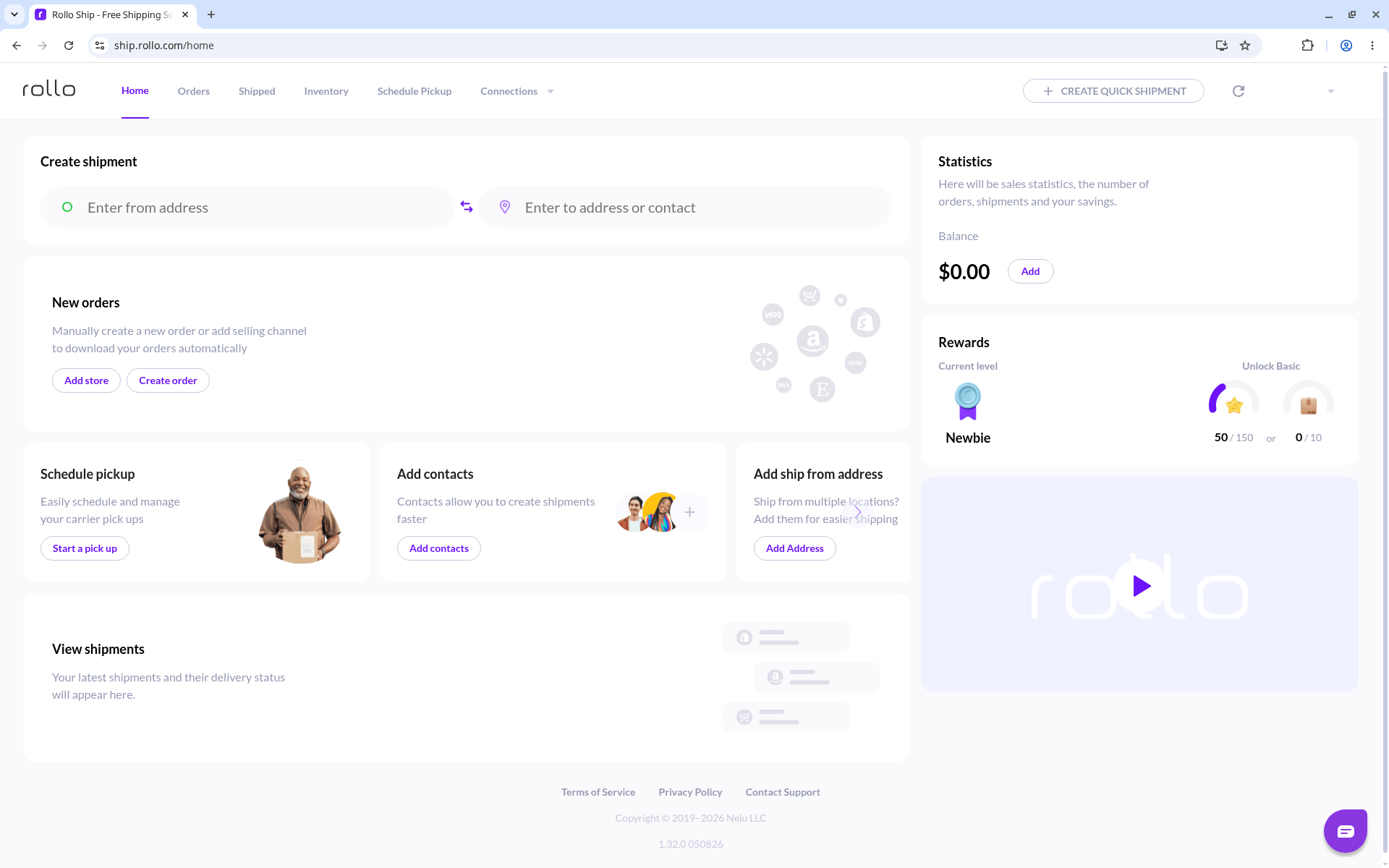
Home: start with + CREATE QUICK SHIPMENT.
Shipping store orders? Connect your selling channels to import orders and create multiple shipments. In the top navigation, open Connections, choose Selling channels, and select the stores you want to connect. Follow the on-screen prompts to link your ecommerce store. Your orders are imported automatically and appear under New Orders or the Orders tab when you log in.
2. Enter where you are shipping (From / To)
Enter the ship-from and ship-to addresses on the Where are you shipping? screen.
- In From, enter or pick the ship-from address.
- Complete Sender details (Name, Apt/Suite/Floor if needed, Phone), then click Continue.
- In To, enter or pick the ship-to address.
- Complete Receiver details (Name, Apt/Suite/Floor, Company name, Phone). Optionally turn on Email tracking to recipient, then click Continue.
- Confirm the route on the map, then click Continue.
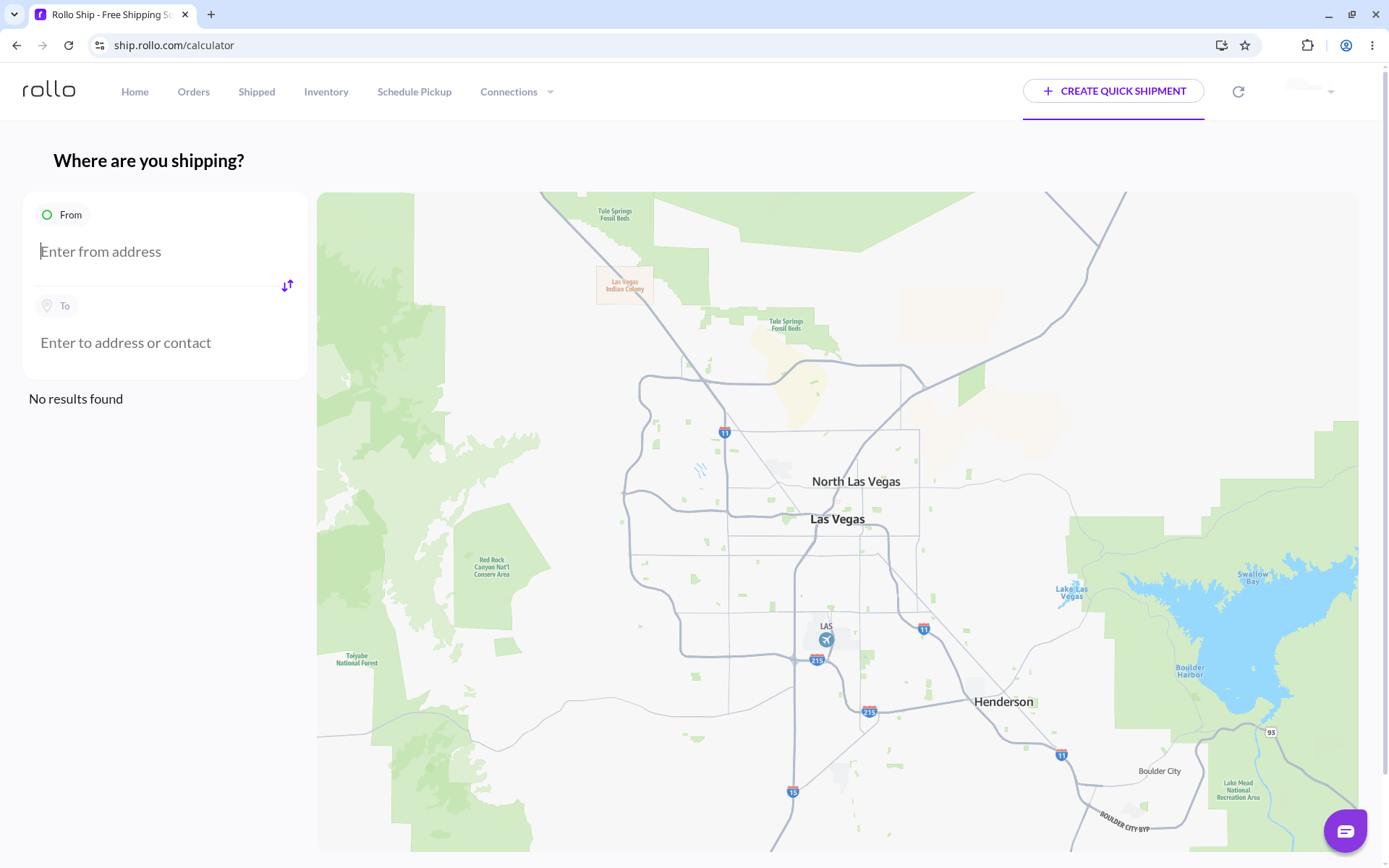
Where are you shipping? Enter the From address.
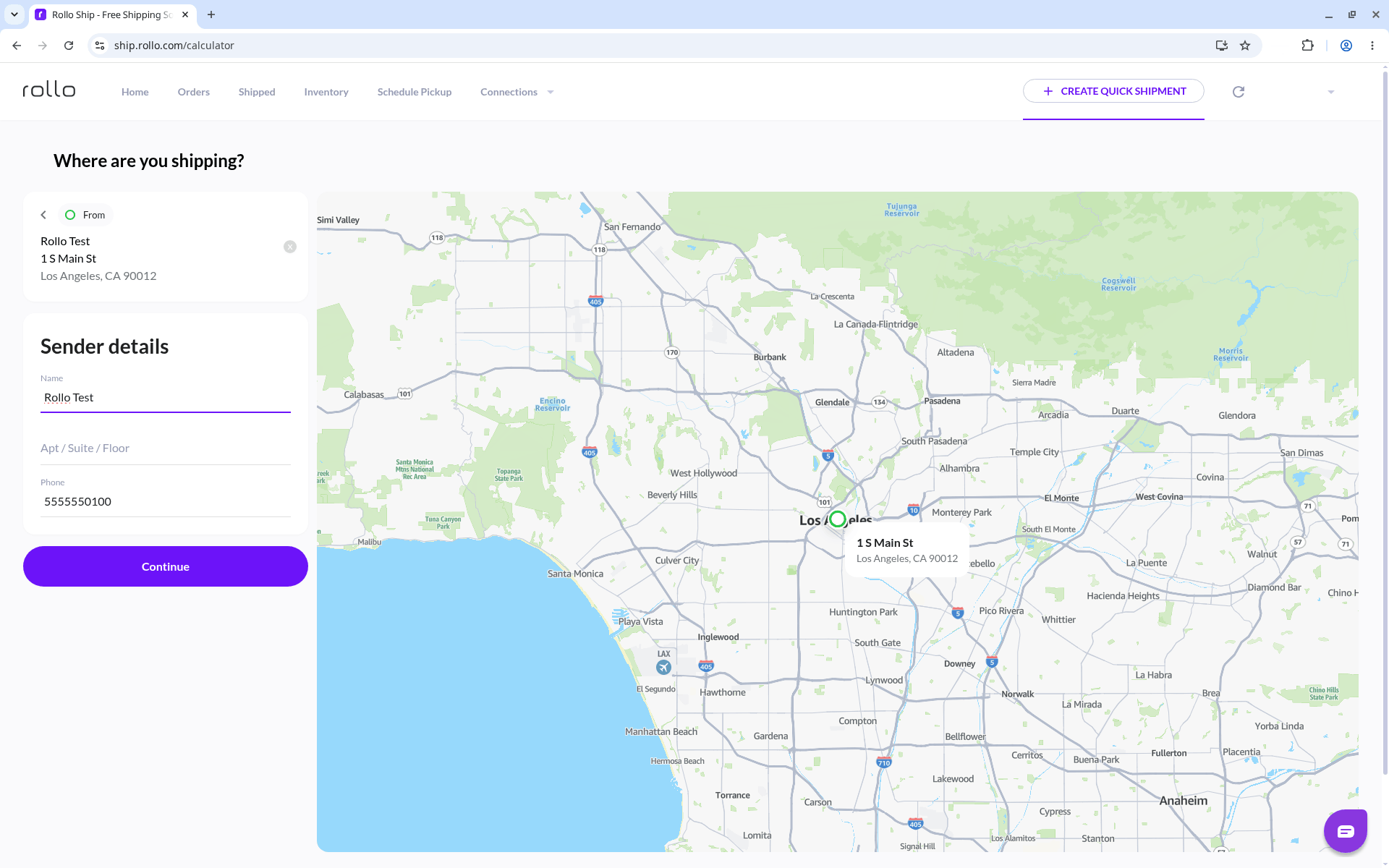
Sender details.
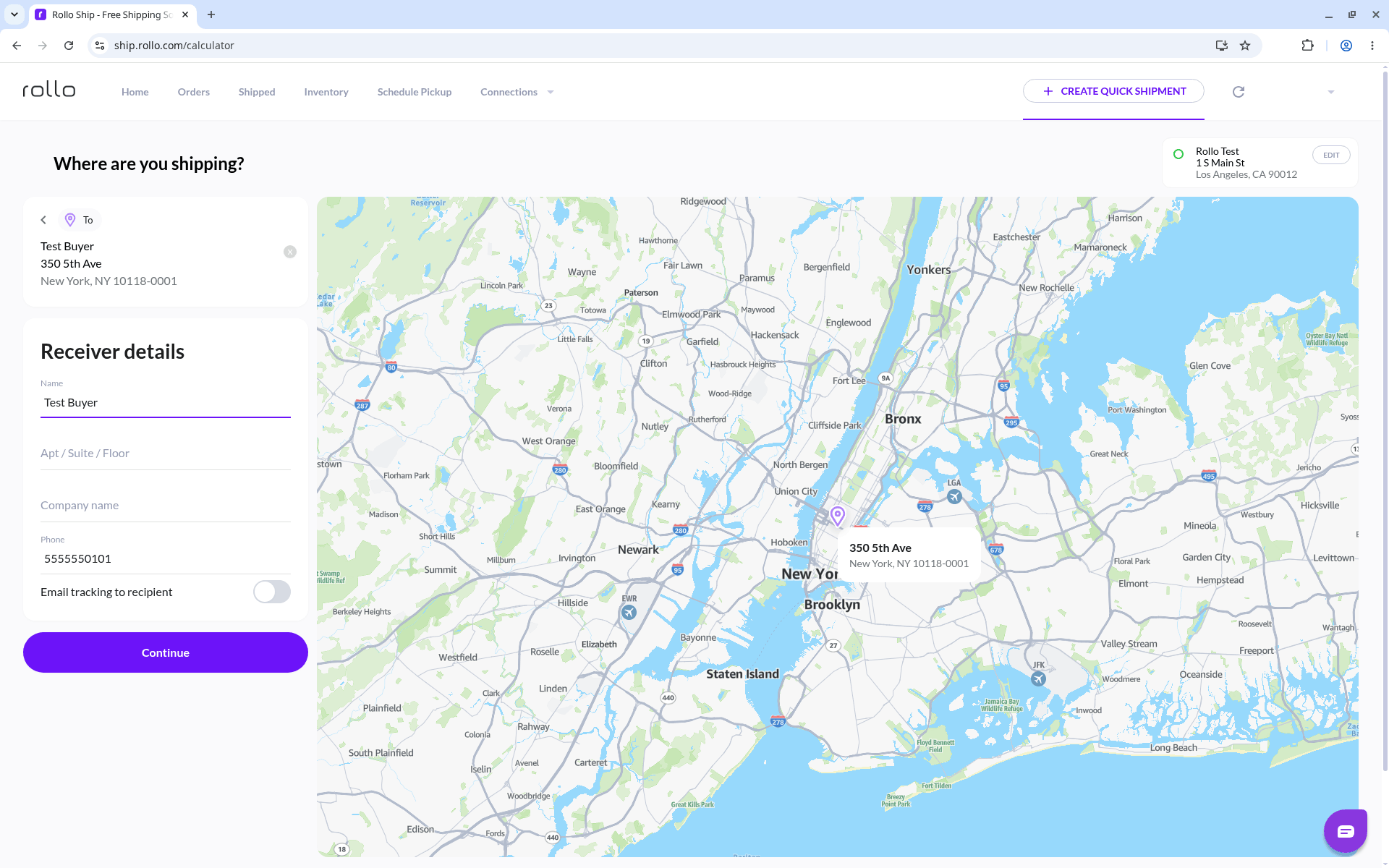
Receiver details, with the optional Email tracking to recipient toggle.
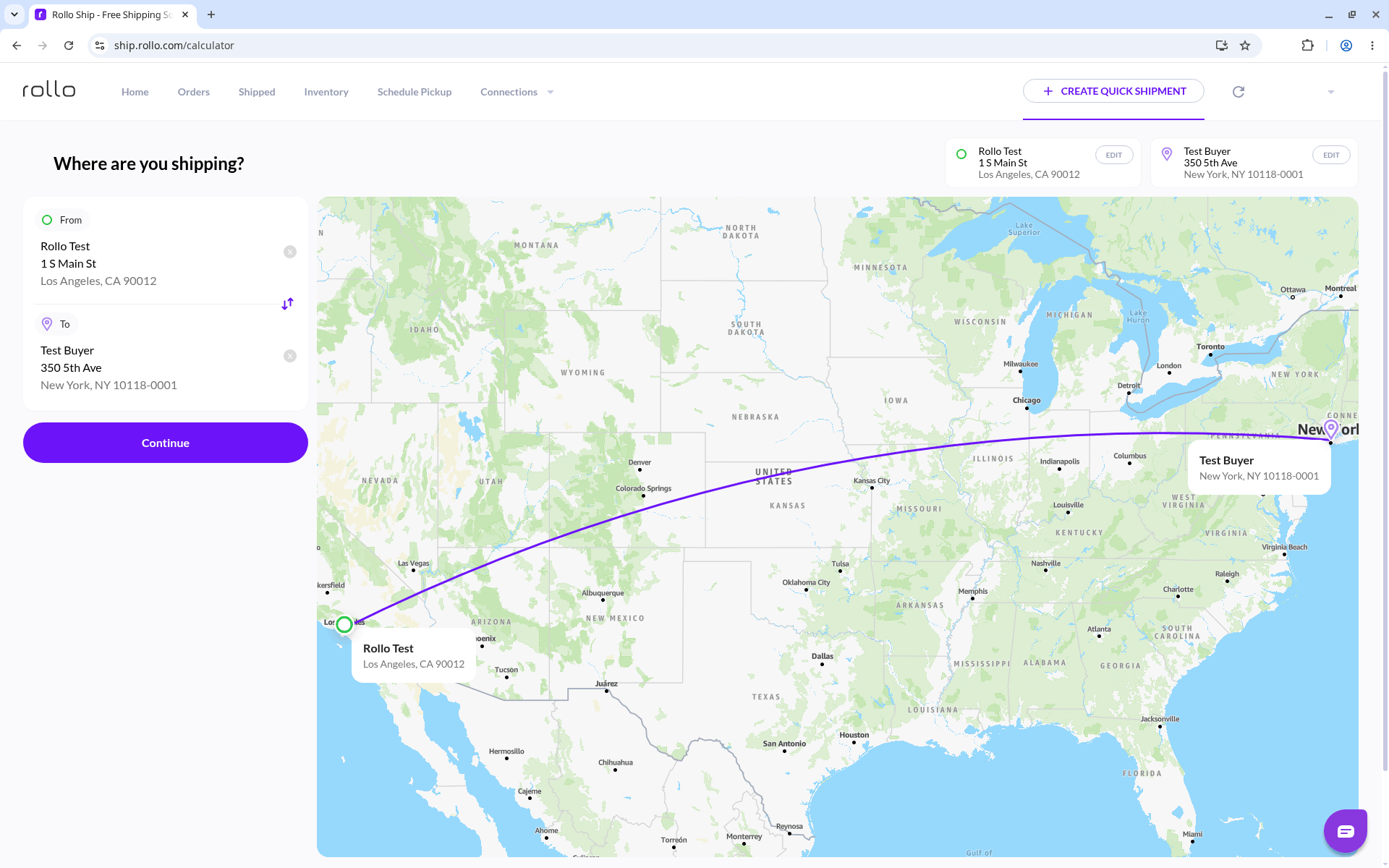
Confirm the route, then click Continue.
3. Say what you are shipping
Describe your package on the What are you shipping? screen.
- Choose a package type: Box · Soft Package · Envelope · Hazmat (Hazmat ships with USPS Ground Advantage only).
- Enter Length / Width / Height in inches and weight in lb / oz.
- Optional toggles: Signature (signature confirmation) and Insurance (declared value), on supported services, and Save as package preset (saves box type, dimensions, and weight).
- Click Continue (the app may show Requesting rates while it loads).
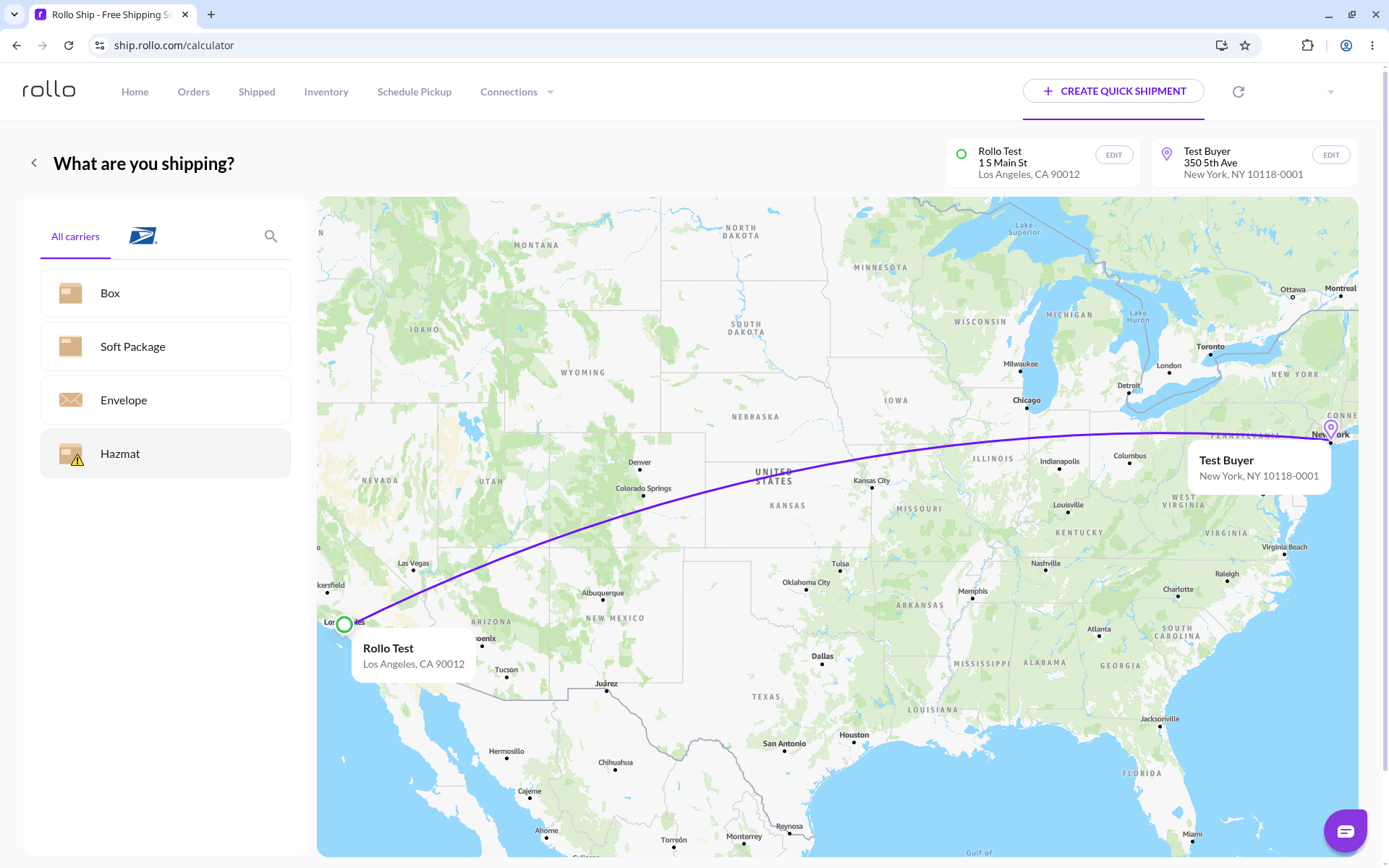
Choose a package type.
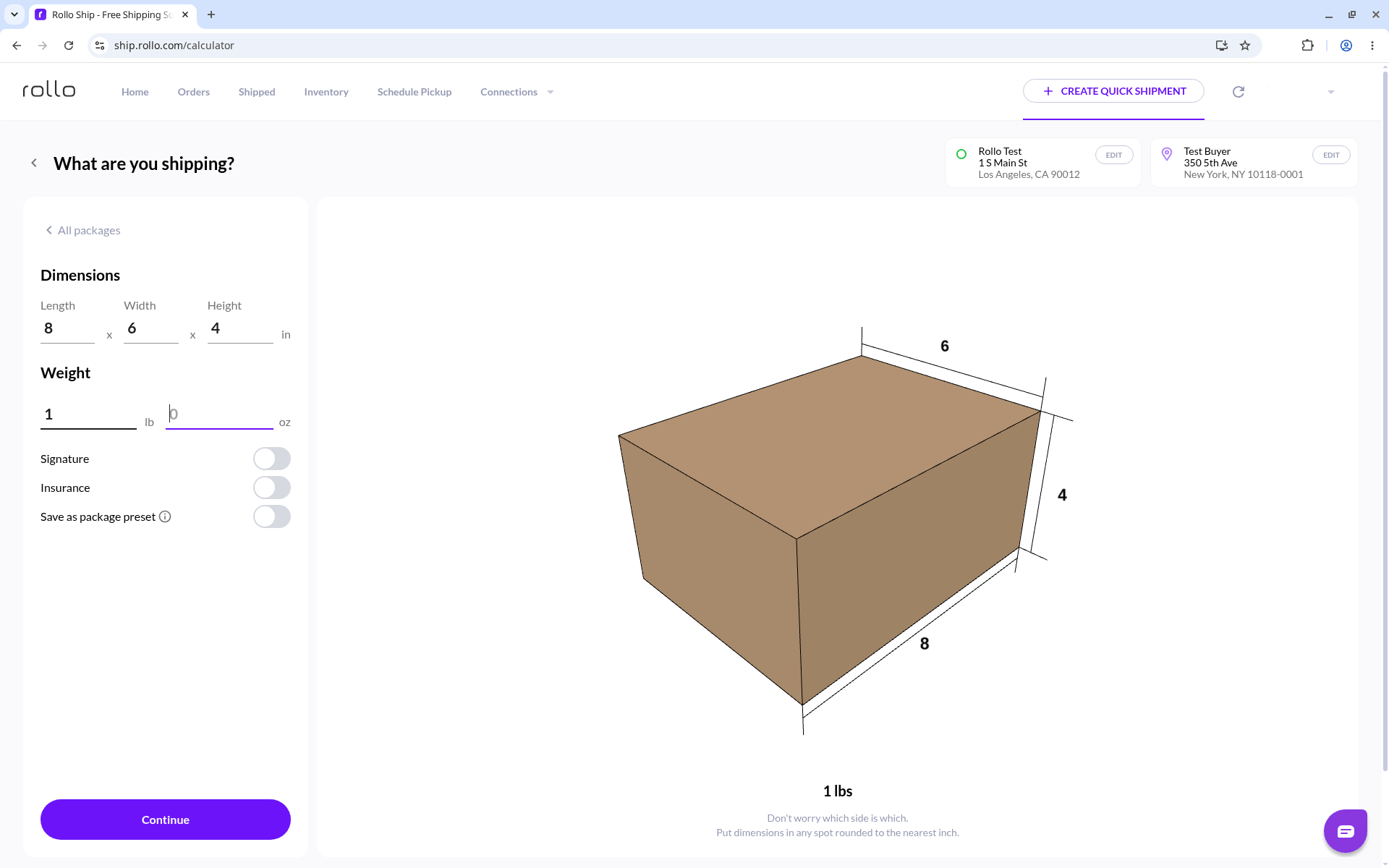
Enter dimensions and weight.
4. Compare rates on Summary and buy the label
Pick a service on the Summary screen and click Buy label. You can compare rates side by side and sort by best value, lowest price or fastest delivery with the Best value · Economic · Fastest tabs. A ship-date control (for example Today) sets the ship date. On a US account the rates come from USPS and UPS; on a Canadian account, from Canada Post and UPS. FedEx and Purolator rates show once you connect your own account.
- Select a carrier service. Review the right-hand totals: Shipping, Taxes & fees, Platform fee, and Total.
- On a new account, Platform fee shows $0.00 while your first 200 labels have no label fee (postage is still in Shipping).
- Optional on Summary: add signature confirmation at checkout on supported services, or add insurance by entering a declared value at checkout, on supported services. Email tracking to recipient and References are here too. Any extra cost shows in the price at checkout.
- Click Buy label, then follow the on-screen prompts.
UPS note: Only USPS is on by default. UPS needs to be activated only once per Rollo Ship account; until then, UPS rows may show Activate UPS instead of Buy label. Complete activation when prompted, then buy.
Delivery Area surcharge: A notice may appear that a Delivery Area surcharge was added to the service cost. UPS rates include Fuel Surcharge and Residential Surcharge for all services and Delivery Area Surcharge for Domestic Services. This is a carrier surcharge, not the Rollo platform fee.
Rates vary by weight, dimensions, zone, and service, and can change. A carrier can also re-rate a label after purchase, so the price at checkout is not guaranteed to be final. Do not treat any sample dollar amount as a fixed price — compare live rates in Rollo Ship or with the shipping calculator.
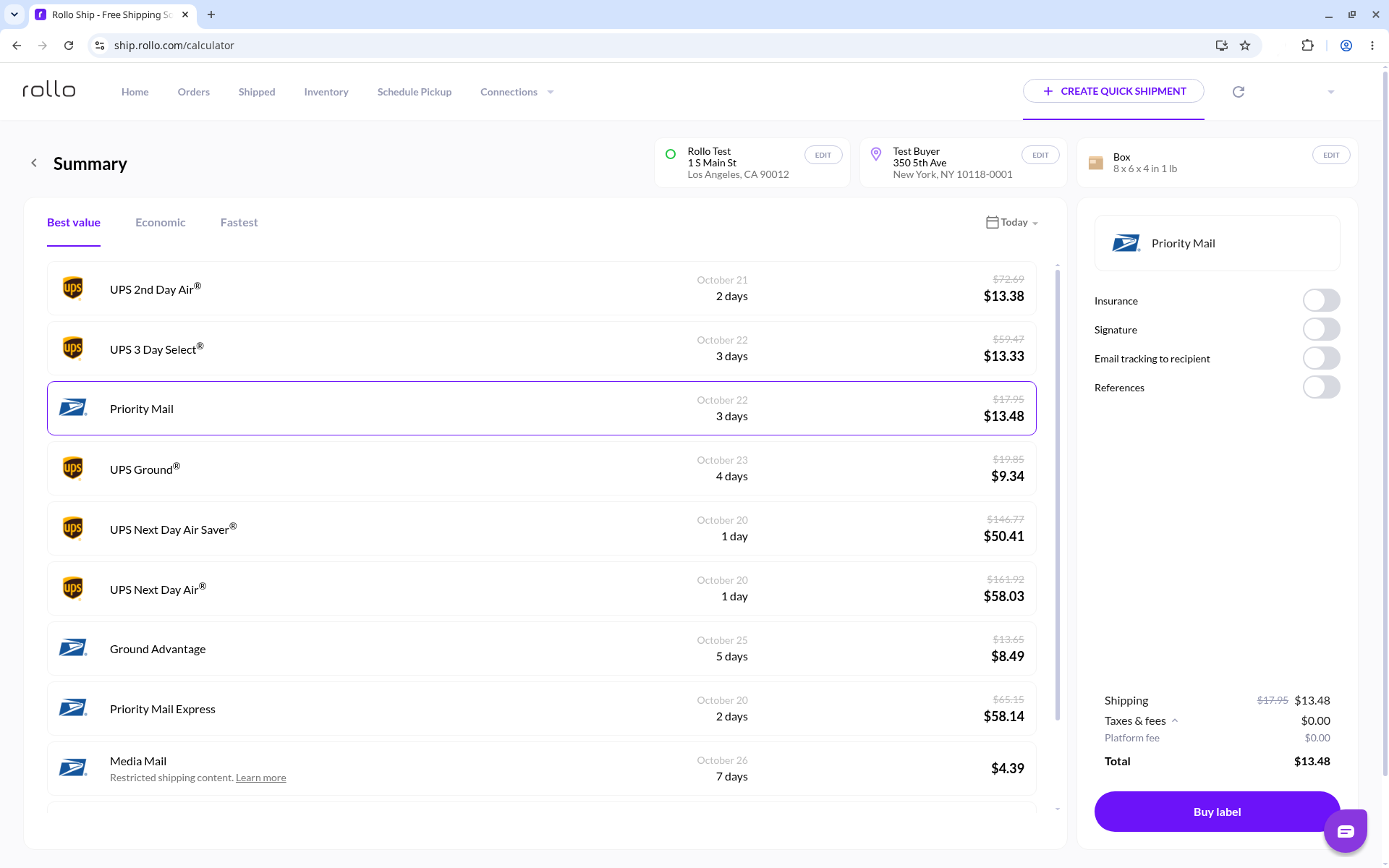
Summary: compare rates, review totals, then click Buy label.
5. Fund Billing if you need wallet balance
Add funds in Billing if your wallet balance cannot cover postage. Postage and any label fee come from your prepaid wallet.
- Open Billing from the profile menu, or go to ship.rollo.com/billing.
- Billing shows your BALANCE (with an ADD button), ROLLO SHIPPING FEE WAIVED — 200 Labels, and SAVINGS TO DATE.
- Click ADD. In the Managedialog, choose how to pay:
- Bank: earns 3x Rewards points, with no fees.
- Card: earns 1x Rewards points, with higher fees.
- Choose Auto-Refill or Single Payment.
- Submit to fund, then return to buy the label if you left Summary.
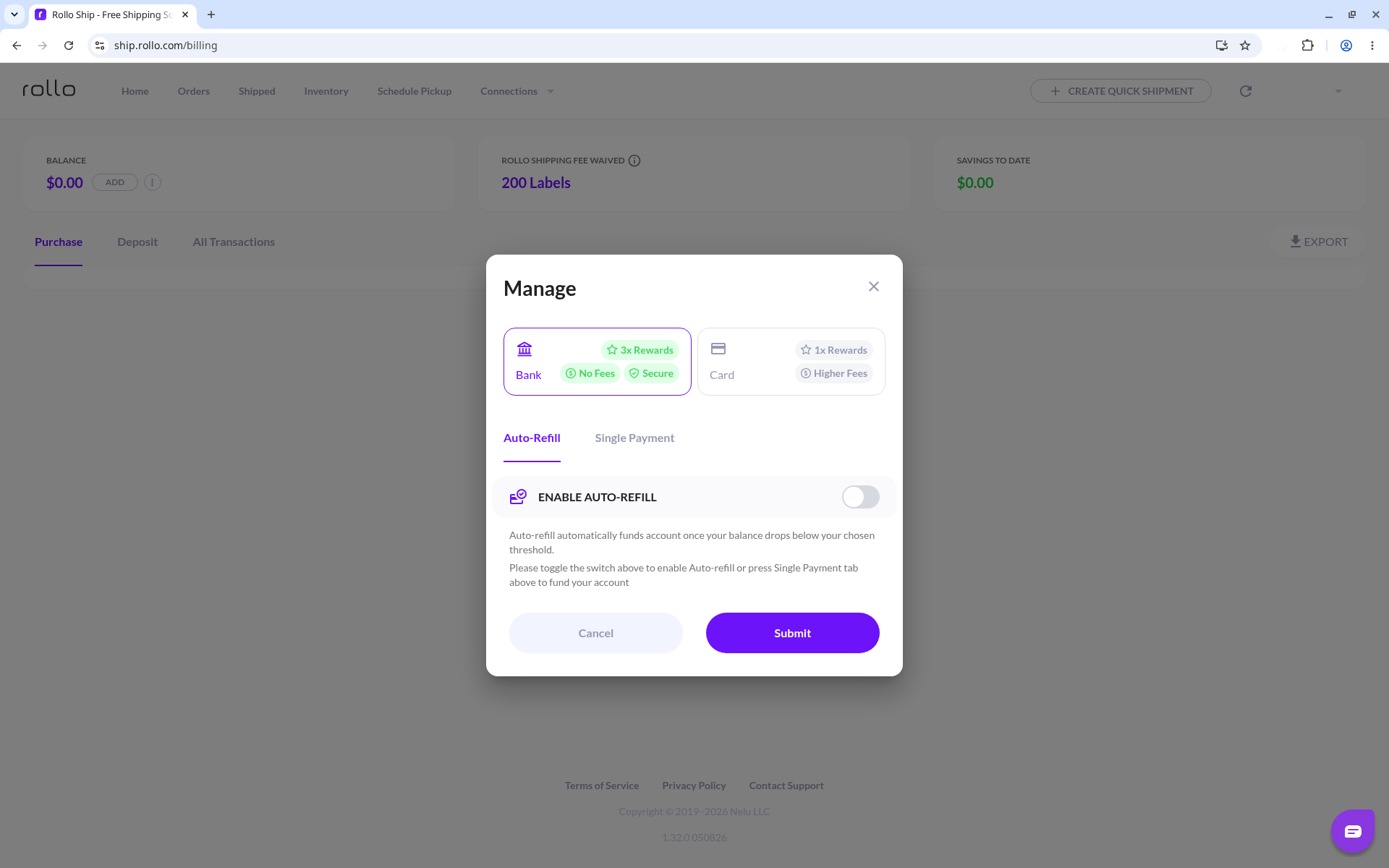
Manage dialog: choose Bank or Card, then Auto-Refill or Single Payment.
Full wallet help: Rollo Ship Wallet, Deposits, and Auto-Refill.
6. Print settings
To print the label and package slip together, turn on the toggle in Print Settings. Open the account menu, choose Settings (it opens on Package Presets), then select the Print tab (ship.rollo.com/print). The Print Settings card has a single toggle: Print label and package slip together.
There is no label-size (4×6) setting on this screen.
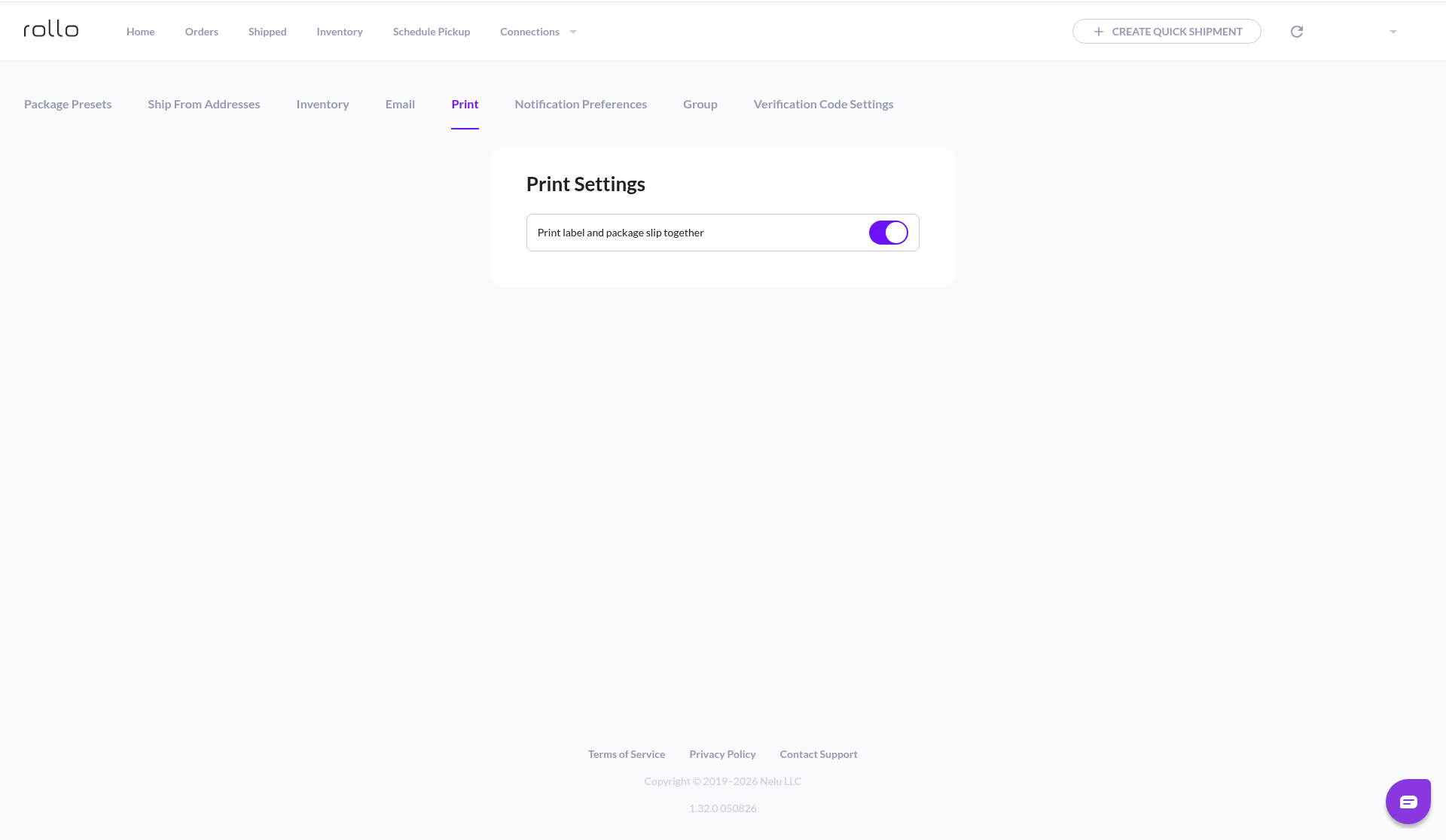
Print Settings: one toggle for printing the label and package slip together.
What it costs
Rollo Ship has no subscription: you pay carrier postage, plus a small label fee after your first 200 labels.
| What you pay | How it works |
|---|---|
| Account / subscription | Free. No monthly subscription. No sign-up fee. |
| Carrier postage | Paid from your funded wallet for the service you choose. It appears as Shipping on the Summary screen. |
| Label fee (Platform fee on Summary) | Your first 200 labels have no label fee (Billing shows ROLLO SHIPPING FEE WAIVED — 200 Labels). After that it's 5¢ per label, down to 1¢ with Rollo Rewards: Newbie 5¢ · Basic 5¢ · Pro 3¢ · Expert 2¢ · VIP 1¢ (no 4¢ level). U.S. accounts pay in USD; Canadian accounts pay in CAD. |
| Wallet funding | Bank (ACH): 3x Rewards points, no fees. Card: 1x Rewards points, higher fees. Choose Auto-Refill or Single Payment. |
New accounts start at the Newbie level of Rollo Rewards. You earn Rewards points when you fund your account, plus 5 points for every shipment. At Newbie, the label fee is 5¢ per label once your first 200 labels are used.
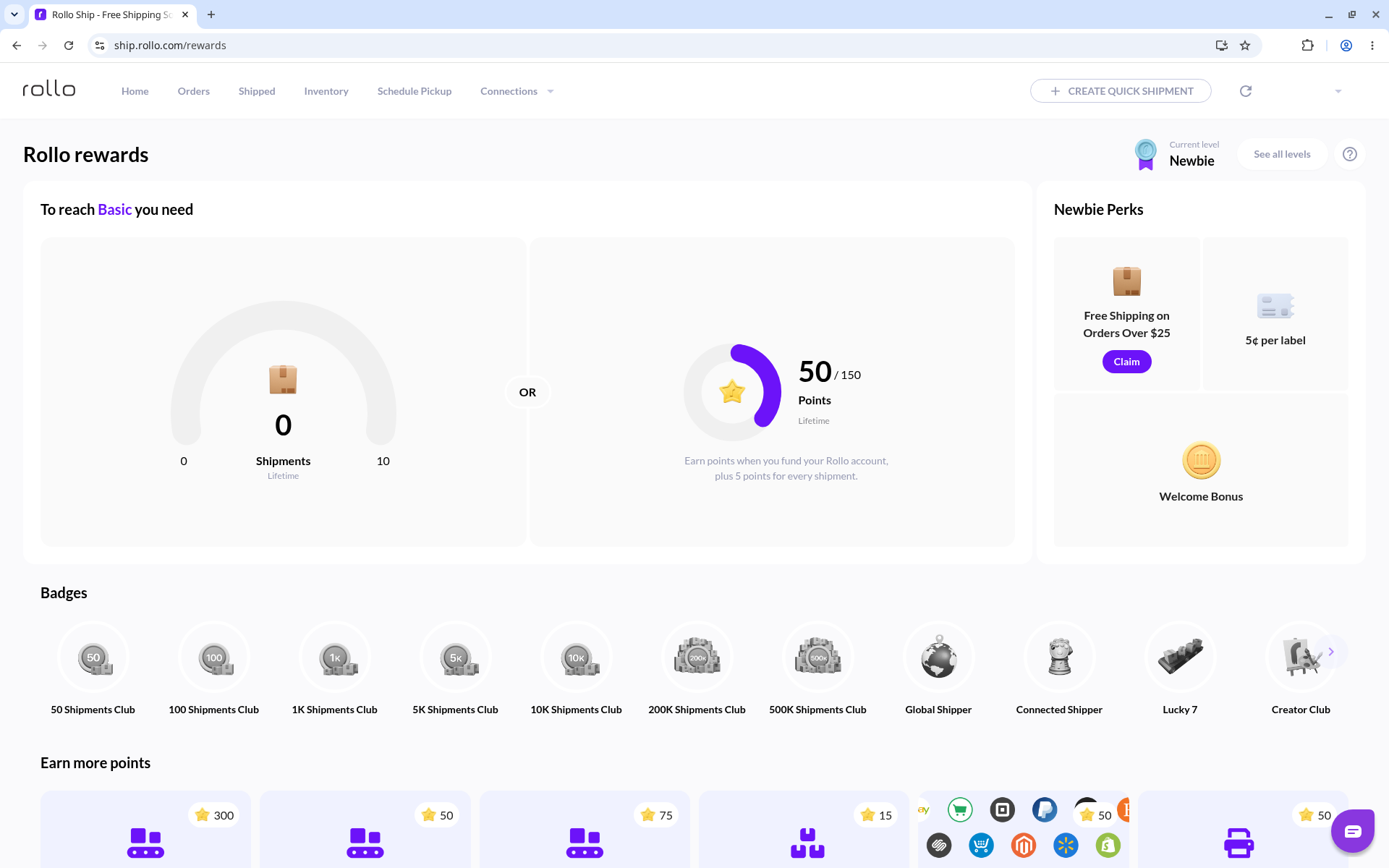
Rollo rewards: your level, progress, and per-label fee.
In the U.S., USPS and UPS are built in. In Canada, UPS and Canada Post are built in. Other carriers (FedEx, and Purolator in Canada) work with your own account, with no Rollo discount.
Learn more: What Is Rollo Ship? · Rollo Rewards
FAQ
Q: Does my first label include free postage?
No. You always pay the carrier for postage. Your first 200 labels have no Rollo Ship label fee, but postage still applies to every label.
Q: Why do I see Activate UPS instead of Buy label?
Because UPS is not activated on your account yet. Only USPS is on by default. Activate UPS once per Rollo Ship account when prompted, and UPS services then show Buy label like the other built-in carriers.
Q: What is the Delivery Area surcharge notice?
It is a carrier surcharge, not a Rollo fee. UPS can add a Delivery Area surcharge on eligible services and destinations, and it is separate from the Rollo platform fee.
Q: Can I compare rates before I fund the wallet?
Yes. You can compare rates without adding funds. Fund your wallet in Billing when you are ready to buy a label.
Q: Can I buy labels for several orders at once?
Yes. In Orders, group similar orders and create labels for all of them at once.
Q: Is Rollo Ship the same as Rollo Ship Manager?
Yes. Rollo Ship is the current name of the app that was formerly called Rollo Ship Manager.
Q: Do I need a Rollo printer?
No. Rollo Ship works with any compatible printer. A Rollo printer is optional.
Related links
- What Is Rollo Ship?
- Create a free Rollo Ship account — U.S. and Canada
- How do I generate shipping labels with Rollo Ship?
- Rollo Ship Wallet, Deposits, and Auto-Refill
- Rollo Rewards
- Shipping calculator
Ready to ship? Compare live rates and buy your first label.
Compare rates and create a quick shipmentNew shippers: sign up