
A label that prints tiny, shrunken, or with the edges cut off almost always means the label file and the paper size do not match. Many selling platforms generate labels on a full 8.5x11 page, so the fix is to set the platform to generate 4x6 labels, then set the paper size to 4x6 and the scale to "Fit to printable area" when you print.
Step 1: Rule out the printer
1. Print the Rollo 4x6 sample label.
2. If the sample prints correctly, your printer and driver are fine. The issue is the label file or the print settings. Continue below.
Step 2: Set your platform to generate 4x6 labels
## Step 2: Set your platform to generate 4x6 labels
Most scaling problems start here. Check the label format setting in the platform you buy labels from.
1. eBay: on the label page, click "Switch to advanced shipping." You will then see the option to change the label size to 4x6. Save, then refresh the page and reopen your shipping label.
2. ShipStation: the label size is set to 8.5x11 by default. Change it to 4x6 in your label settings. Labels you already generated will not update, so reprint those using the Adobe Acrobat Snapshot method in Step 5.
3. Other platforms (PayPal, Etsy, inventory software, and similar): look for a shipping, label format, or printer type setting and choose the 4x6 or thermal printer option.
Step 3: Check the print dialog
1. When you print, set the paper size to 4x6 or 100mmx150mm for windows computer
2. Set the scale option to "Fit to printable area" (on Mac, turn on "Scale to Fit Paper Size" on the print prompt)
3. If you are printing from a browser, click "Print using system dialog" so you can see and change these settings.
Step 4: Check the printer settings on your computer
Windows
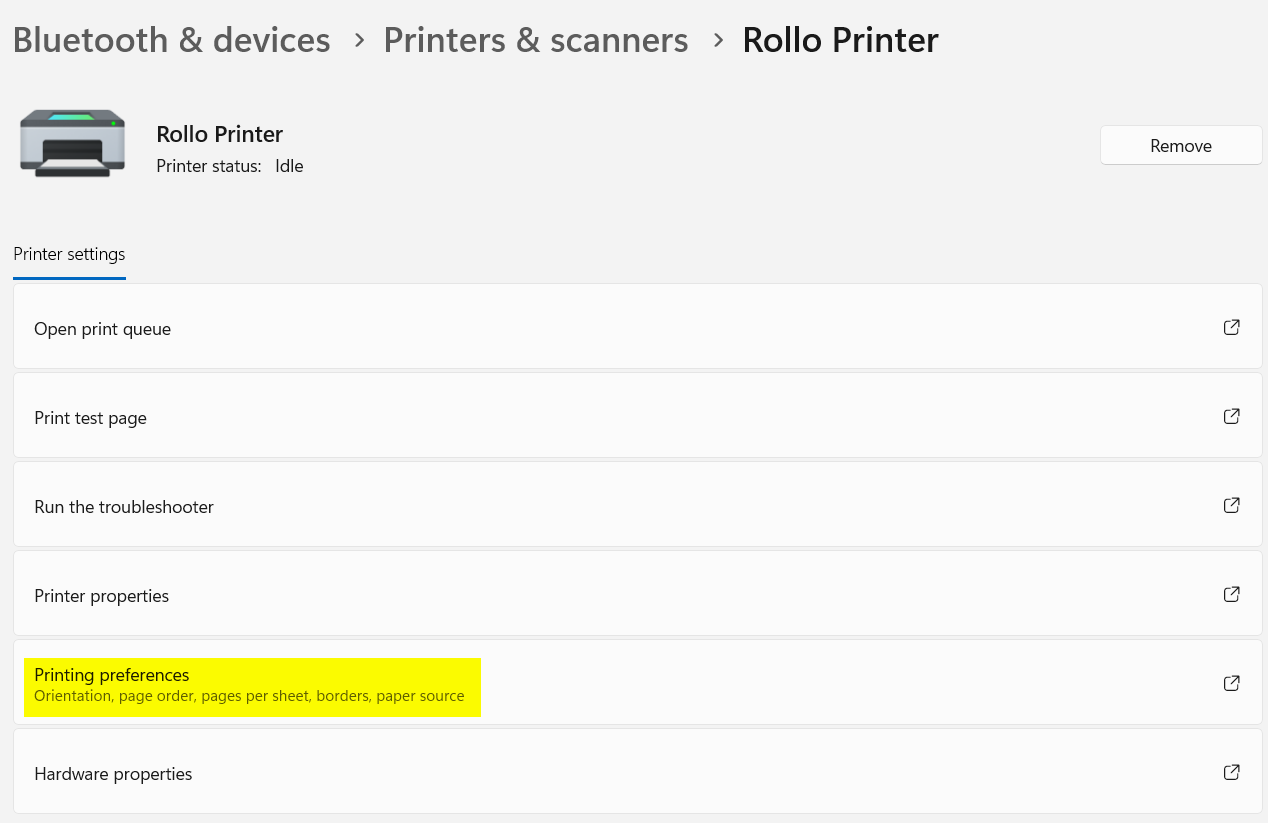
1. Go to Printers \& Scanners, select the Rollo printer, then Printing Preferences.
2. On the Stock tab, confirm the label settings are correct. Make sure Labels with Gap is set, then Gap Height is 3mm, and offset is 0mm.
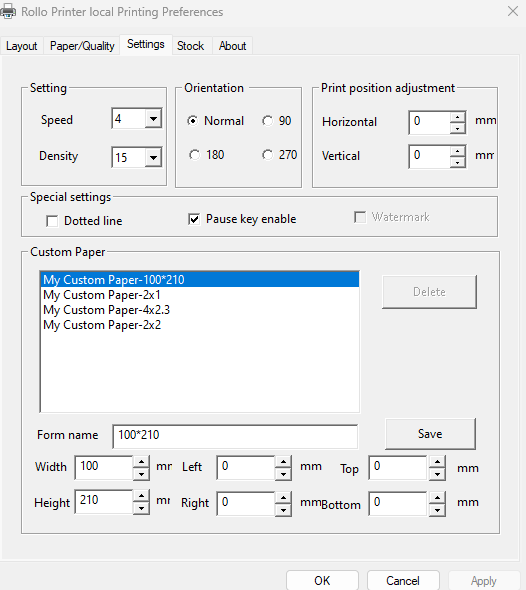
3. On the Settings tab, make sure all margins and Print position adjustment is set to 0.
4. Click the Layout tab, then Advanced, and confirm Paper Size is 4x6 (shown as 100mm x 150mm on some driver versions). Click OK, then Apply, then OK.
5. If all the settings already look correct, remove the Rollo printer and add it again.
Mac
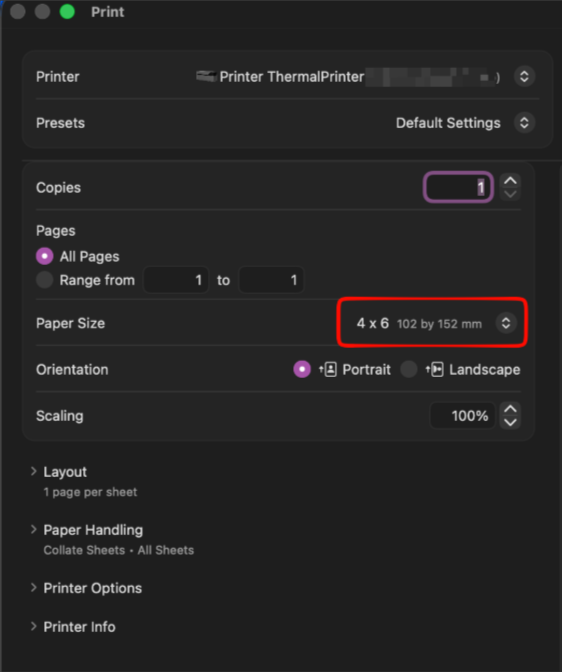
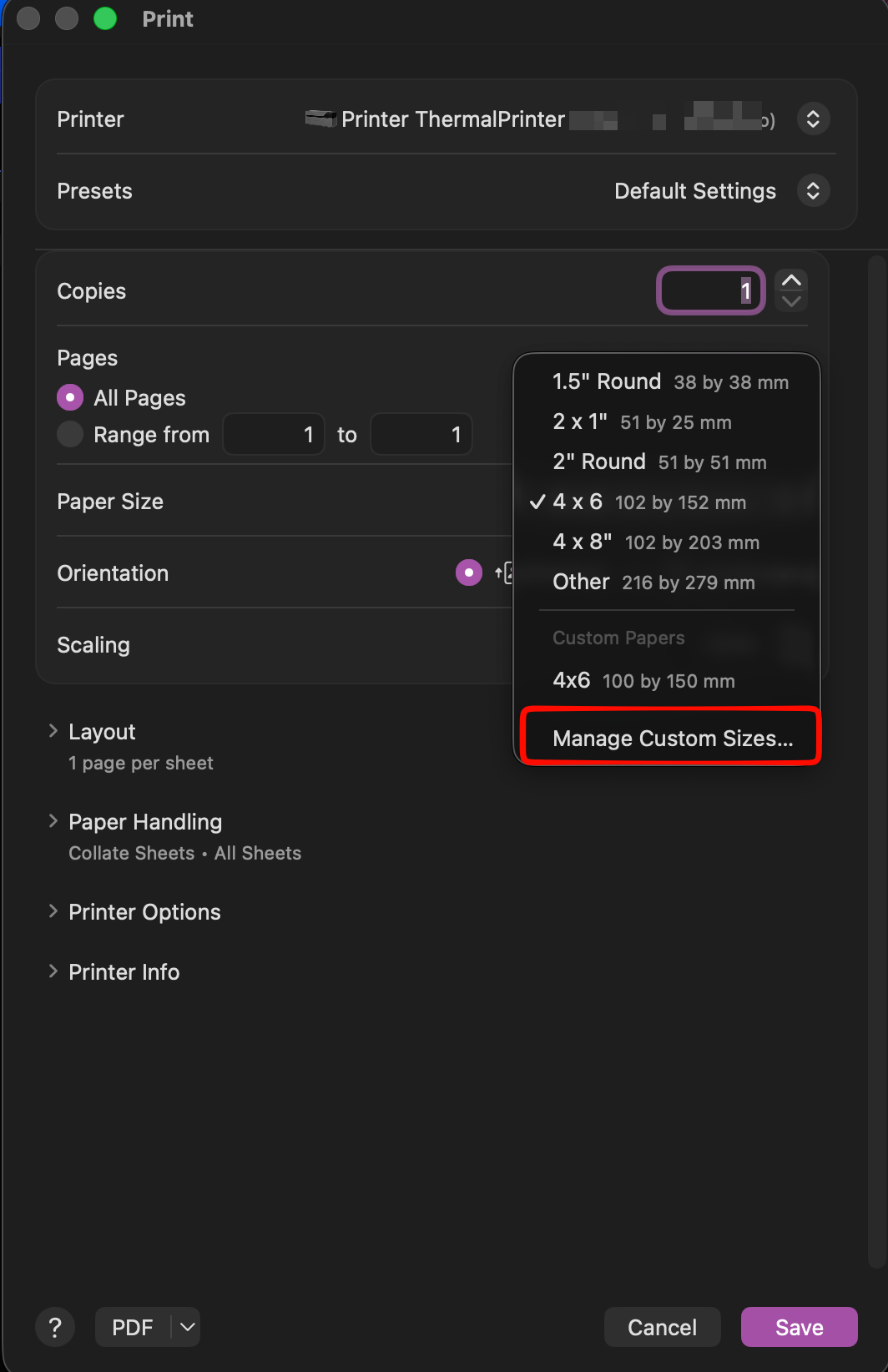
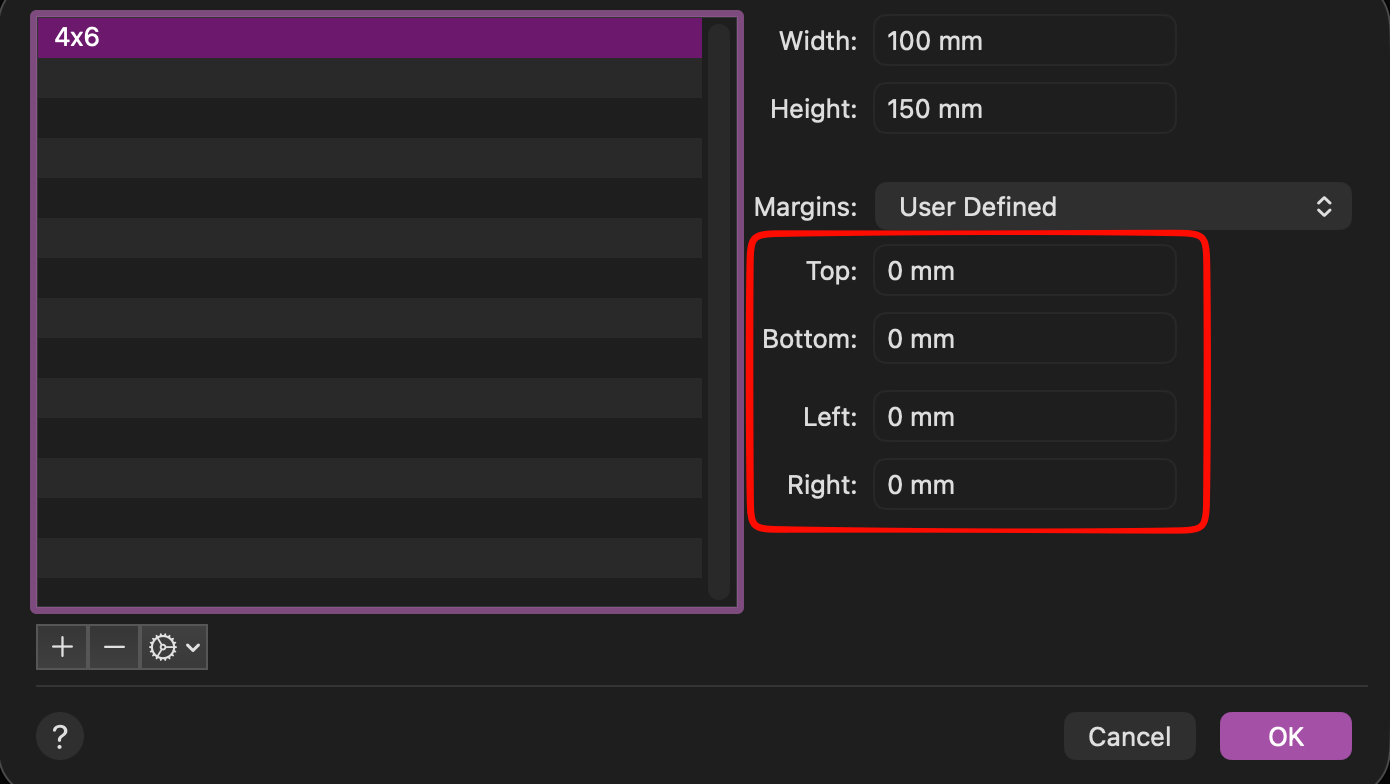
1. In the print dialog, confirm the paper size is 4x6. If you use a custom size, open Manage Custom Sizes and make sure all margins are set to 0.
2. If labels still print small or cut off, remove the Rollo printer in Printers \& Scanners (select it and click the minus button), delete the Rollo driver from your Applications folder, and download the alternate driver version
* Gdrive: https://drive.google.com/file/d/1Xmzo1L8tQejSPg6x1tOgXIkudCLRlVBF/view?usp=share\_link - Rollo printer software - ver 1.7
* Gdrive: https://drive.google.com/file/d/1knPC9li\_On2Sy\_RE82COHHvHRm\_LaMgd/view?usp=sharing - Rollo thermal printer software - ver 1.0
iOS devices
The Rollo app formats labels for the label size the printer learned during calibration. If prints come out small or cut off from the app, recalibrate the printer (press and hold the R button until one beep) and make sure the label file itself is 4x6.
iOS and Android devices
When printing 8.5x11 via your Android or iOS device, Rollo Wireless Printer can recognize and automatically crop your labels into 4"x6" size.
Step 5: Fix a label that was generated on a full 8.5x11 page
If your platform can only give you a full-page document, crop the label before printing.
1. Open the PDF in Adobe Acrobat Reader (the free version works, no sign-in needed).
2. Open the Menu, choose "Undo, Redo \& More," then "Take a Snapshot," and drag a box around just the label.
3. Print the snapshot with the paper size set to 4x6 and scale set to fit.
Still stuck? Reach out to our team through chat support and we will walk you through it.