
Connect your Best Buy store to Rollo Ship to import orders automatically, compare discounted rates, and print 4x6 shipping labels. Tracking numbers go back to Best Buy when you create a label. Connecting a store is free.
Adding Best Buy to your Rollo Ship account offers many benefits including easily creating 4x6 shipping labels for your Best Buy orders, being notified when new orders are available, processing all your orders in Rollo Ship, and easily printing to your Rollo printer. Best Buy will be automatically notified of the tracking number once you make a label in Rollo Ship.
In the Rollo app (iOS or Android)
1. Open the Rollo app and Login
2. Press on the Menu Icon located at top left of the screen

3. Choose "Connections" and select "Selling Channels"
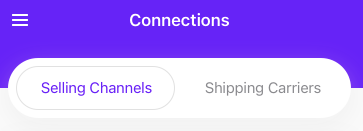
4. Press "ADD NEW" and choose Best Buy
5. Enter your Best Buy account credentials: Store API Key and Base URL (how to find Store API Key and Base URL is described further)
6. Click on Connect
On Rollo Ship web (ship.rollo.com)
2. Click "Connections" in the top menu and choose "Selling Channels"
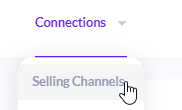
3. Scroll down and click on Best Buy logo
4. Enter your Best Buy account credentials: Store API Key and Base URL (how to find Store API Key and Base URL is described further)
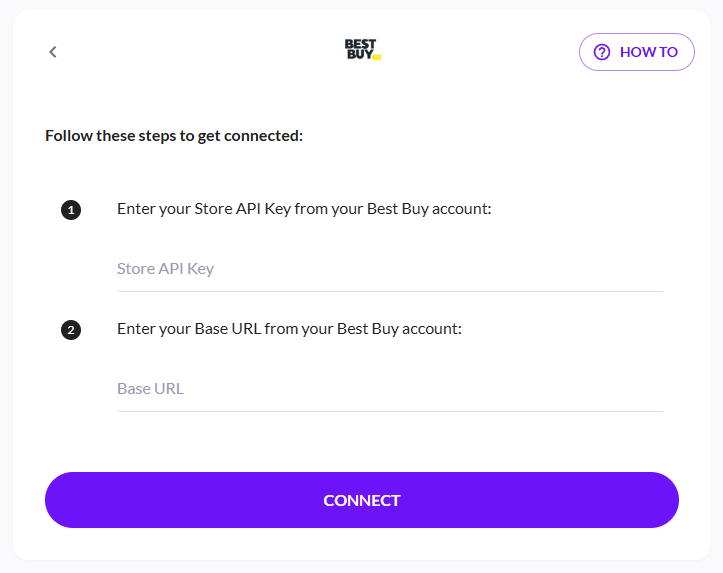
5. Click on Connect
How to find Store API Key and Base URL for Best Buy integration
1. Log in to your Best Buy Marketplace dashboard.
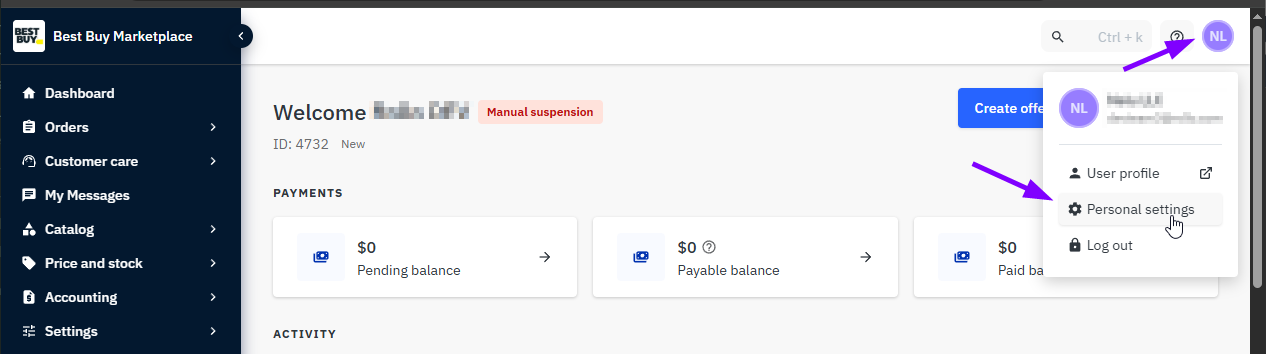
2. Click the user icon (at the top right) -> “Personal Settings”.
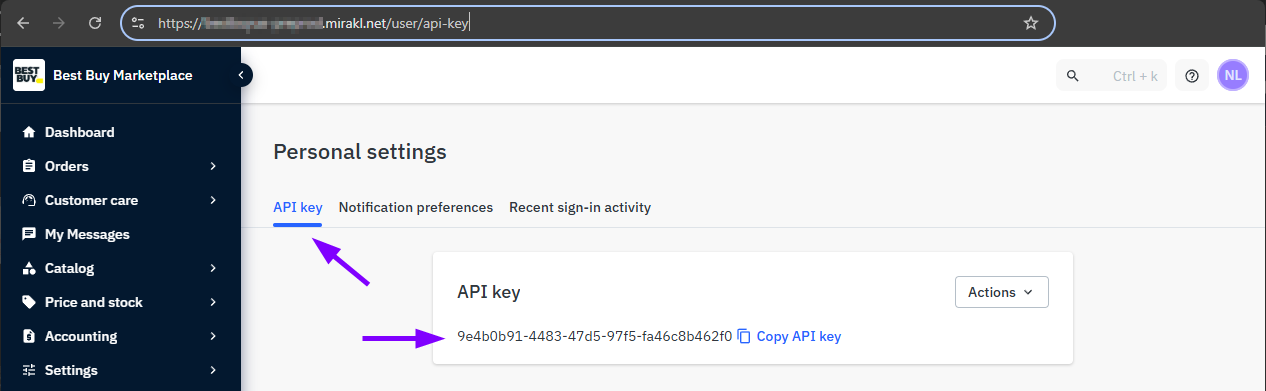
3. Open the “API key” tab. The required key is displayed here.
Why shippers use Rollo Ship
- Free to start. Registering, downloading the app, comparing rates, connecting stores, importing orders and managing inventory are free. No credit card, Rollo printer purchase, contract, or minimum or maximum shipping volume.
- Built-in carrier discounts. USPS® and UPS® are built in for U.S. shippers, and Canada Post and UPS® are built in for Canadian shippers, with discounted rates. Connect your own FedEx® (U.S. and Canada) or Purolator® (Canada only) account at your own negotiated rates.
- No label fee on your first 200 labels. After that, it's 5¢ per label, down to 1¢ with Rollo Rewards. Postage still applies.
- Compare before you buy. See rates side by side and sort by best value, lowest price or fastest delivery.
- Print and ship anywhere. Labels print directly in 4x6 shipping label format on a Rollo printer, and Rollo Ship works with any compatible printer. Ship from your phone with the free Rollo app, or print over WiFi with a Rollo Wireless printer.
Quick links
- Buy your first Rollo Ship label
- Rollo Ship per-label fees explained
- All Rollo Ship integrations
- Get the free Rollo app
Connect Best Buy and ship your next order with Rollo Ship.