
Connect your Shopify store to Rollo Ship, and your unfulfilled orders import automatically, so you can compare discounted rates, buy labels and print them on your Rollo or any other printer. Connecting a store is free, and you do not need to be a business or own a Rollo printer to use Rollo Ship.
Tip: The Rollo Ship website (ship.rollo.com) is the most reliable place to set up the connection. If the mobile app gives you trouble, switch to a computer.
Before you start
- Create a free Rollo Ship account if you do not have one. See Create a free Rollo Ship account.
- Have your Shopify store domain ready, for example, mystore.myshopify.com, and your Shopify login details.
- Use a US or Canadian ship-from address. Rollo Ship requires one.
Connect Shopify on Rollo Ship web
- Sign in to Rollo Ship.
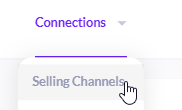
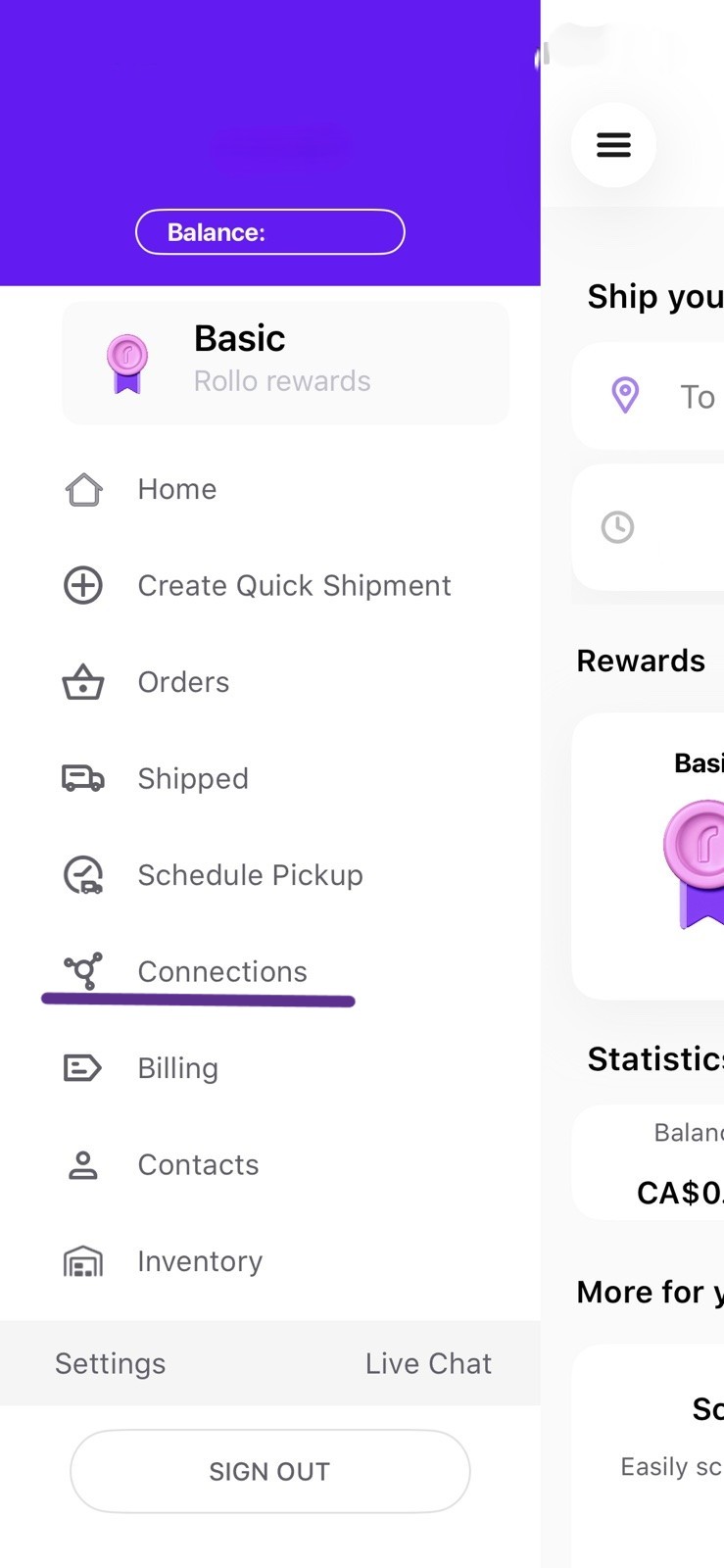
- Click Connections in the top menu and choose Selling Channels.
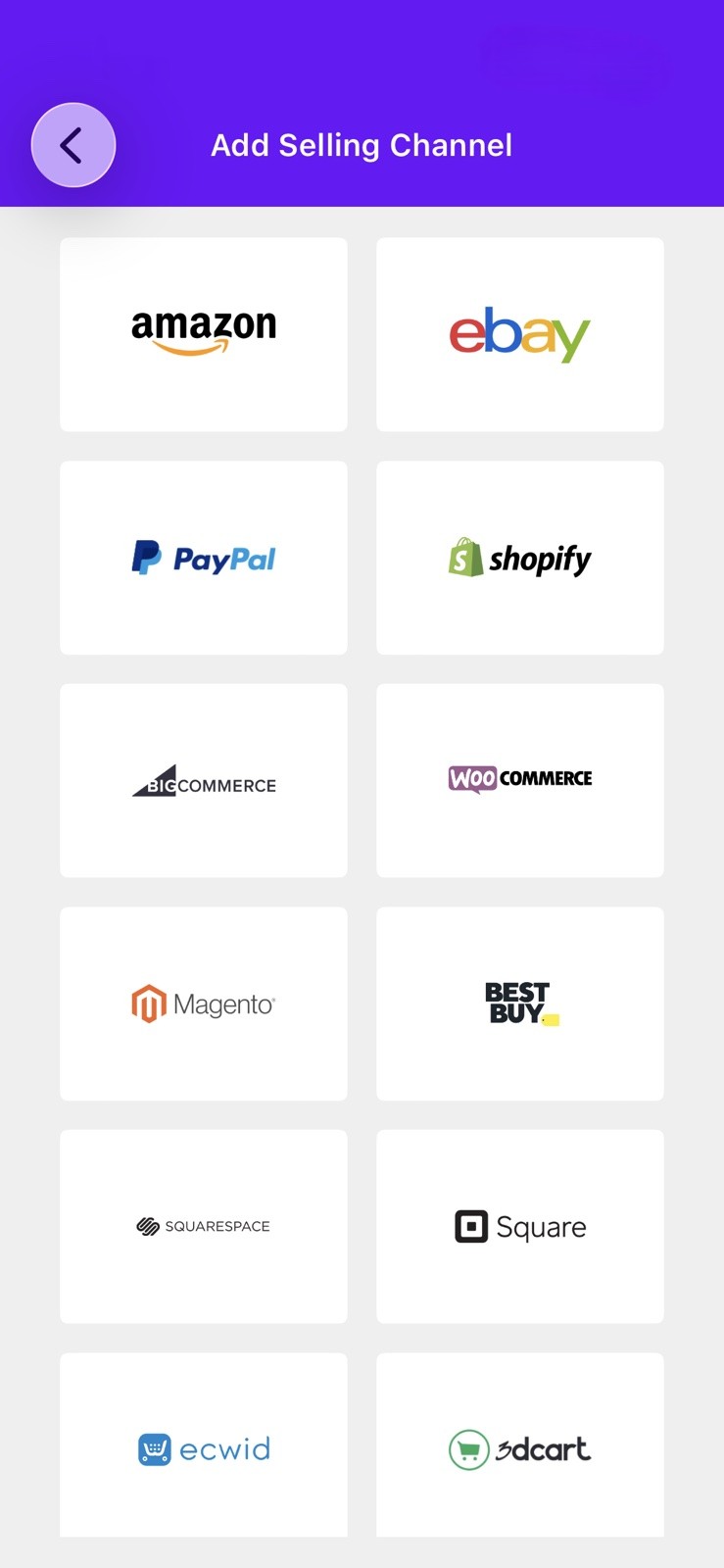
- Scroll down and click the Shopify logo
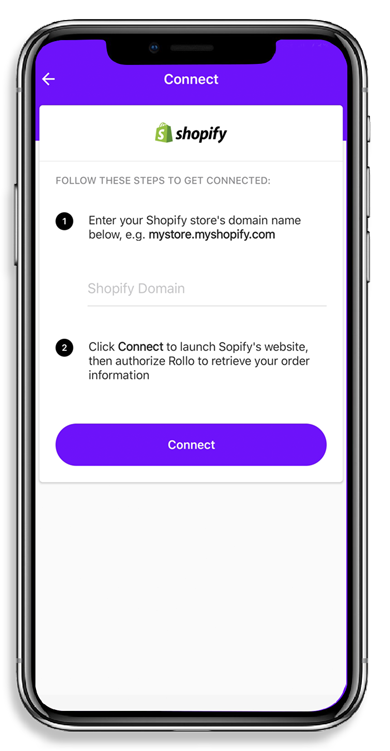
5. Enter your Shopify account credentials and proceed.
6. Done. Your current and future Shopify orders will be available for shipping in Rollo Ship within a few moments.
Connect Shopify in the Rollo app (iOS or Android)
- Open the Rollo app and sign in.
- Press the Menu icon at the top left of the screen.

- Choose Connections and select Selling Channels.
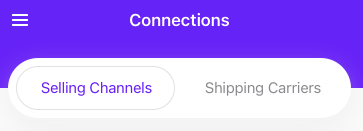
- Press ADD NEW and choose Shopify.
[Screenshot placeholder: Rollo app Selling Channels screen with ADD NEW and Shopify]
- Enter your Shopify store's domain name, for example mystore.myshopify.com, and tap Connect.
- Enter your Shopify account credentials and proceed.
- Done. Your current and future Shopify orders will be available for shipping in Rollo Ship within a few moments.
Print a label for a Shopify order
- Open the Orders tab in Rollo Ship.
- Refresh if needed. If a recent order is missing, click the circular arrow icon next to Create Quick Shipment (Update All Markets).
- Select the order, confirm the address, weight and package size, then buy the label.
- Print the label to your Rollo printer or any other printer.
Fulfillment and tracking emails: When you buy a label in Rollo Ship, the order is automatically marked as fulfilled in Shopify. If you want tracking emails to come from Rollo Ship, leave Automatically email tracking information to shipment recipient enabled under Profile, Settings, then Email Settings. If you prefer Shopify's own shipping emails, turn that setting off.
Shopify orders not showing up?
- Check the order status in Shopify. Only new and unfulfilled orders sync to Rollo Ship. Orders you already fulfilled will not appear in the Orders tab.
- Click Update All Markets (the circular arrow icon next to Create Quick Shipment). Also make sure the Group feature is disabled on the Orders tab.
- Reset the connectionif orders still do not appear:
- Go to Connections, then Selling Channels, click Edit on Shopify, and delete the connection.
- Log out of Rollo Ship.
- Log back in.
- Reconnect Shopify under Connections, then Selling Channels.
- Click Update All Markets again.
- Clear your browser cache. Still stuck on the website? Clear your browser's cache and cookies, then log back in. Or try a different browser or an incognito window.
- Switch devices. If you were using the mobile app, try the steps above on the website at ship.rollo.com instead (or the other way around).
Good to know
- Orders fulfilled in Shopify show in Rollo Ship under the Shipped tab as "Marked as Shipped." Rollo Ship cannot pull further tracking updates for those orders, and they cannot be deleted. Check tracking for them directly in Shopify.
- Products: Rollo Ship only imports products that appear on imported orders. It does not sync your full Shopify inventory or SKU list.
- Ship-from address: Rollo Ship requires a US or Canadian ship-from address. If your store is outside the US or Canada, buy your labels in Shopify and print them on your Rollo printer (see Shopify setup for the Rollo USB printer).
- Still stuck? Reach out to our support team on chat, and we will walk you through it.
Why shippers use Rollo Ship
- Free to start. Registering, downloading the app, comparing rates, connecting stores, importing orders and managing inventory are free. No credit card, Rollo printer purchase, contract, or minimum or maximum shipping volume.
- Built-in carrier discounts. USPS® and UPS® are built in for U.S. shippers, and Canada Post and UPS® are built in for Canadian shippers, with discounted rates. Connect your own FedEx® (U.S. and Canada) or Purolator® (Canada only) account at your own negotiated rates.
- No label fee on your first 200 labels. After that, it's 5¢ per label, down to 1¢ with Rollo Rewards. Postage still applies.
- Compare before you buy. See rates side by side and sort by best value, lowest price or fastest delivery.
- Print and ship anywhere. Labels print directly in 4x6 shipping label format on a Rollo printer, and Rollo Ship works with any compatible printer. Ship from your phone with the free Rollo app, or print over WiFi with a Rollo Wireless printer.
Quick links
- Buy your first Rollo Ship label
- Rollo Ship per-label fees explained
- Create a free Rollo Ship account
- Shopify setup for the Rollo USB printer
- Rollo Ship Shopify integration
- Get the free Rollo app
Connect Shopify and ship your next order with Rollo Ship.
