
This guide is for printing Shopify shipping labels on the Rollo USB printer (model X1038), connected to a Mac or Windows computer with a USB cable. You can do it two ways:
- Recommended: connect Shopify to Rollo Ship. Your unfulfilled orders import automatically, you compare discounted USPS and UPS® rates (up to 90% off USPS retail rates on select services), you pay no label fee on your first 200 labels, and you print 4x6 labels straight to your Rollo USB printer.
- Or buy labels in Shopify and set the label format to 4 x 6 before you print.
Recommended: ship your Shopify orders with Rollo Ship
Rollo Ship is free to join, connect stores, import and manage orders, and compare rates. Connect your Shopify store, import Shopify orders, and print discounted labels on your Rollo USB printer.
Option 1 (recommended): Print Shopify labels from Rollo Ship
- Orders import automatically. New and unfulfilled Shopify orders sync to Rollo Ship, so addresses arrive ready to ship.
- Discounted rates built in. USPS and UPS® are built in for U.S. shippers, with up to 90% off USPS retail rates on select services. Canada Post and UPS® are built in for Canadian shippers. FedEx (U.S. and Canada) and Purolator (Canada) are connect-your-own-account, meaning you bring your own negotiated rates.
- No label fee on your first 200 labels. After that, it's 5¢ per label, down to 1¢ with Rollo Rewards. Postage still applies.
- Shopify stays up to date. When you buy a label in Rollo Ship, the order is automatically marked as fulfilled in Shopify.
- True 4x6 labels on your Rollo USB. Print from Rollo Ship on the web at ship.rollo.com, on the computer your Rollo USB is connected to.
- Set up your Rollo USB printer. Follow Setup Rollo for First Use and install the Rollo driver on Windows or Mac.
- Create a free Rollo Ship account on the same computer. See Create a free Rollo Ship account.
- Connect your Shopify store. Follow Connect Shopify to Rollo Ship.
- Buy the label. Open the Orders tab, select the order, confirm the address, weight and package size, compare rates, and buy the label.
- Print to your Rollo USB and select your Rollo printer with a 4×6 paper size.
New to Rollo Ship? See how to generate shipping labels with Rollo Ship on Rollo USB for the full walkthrough, including funding your Rollo Ship Wallet.
Option 2: Buy the label in Shopify and print it at 4 x 6
Already buying labels in Shopify? Your Rollo USB prints them too. Set up your printer and driver first (step 1 above), then:
- Buy the label in Shopify for the order you want to ship.
- On the print screen, click Change format on the right-hand side and choose 4 x 6.
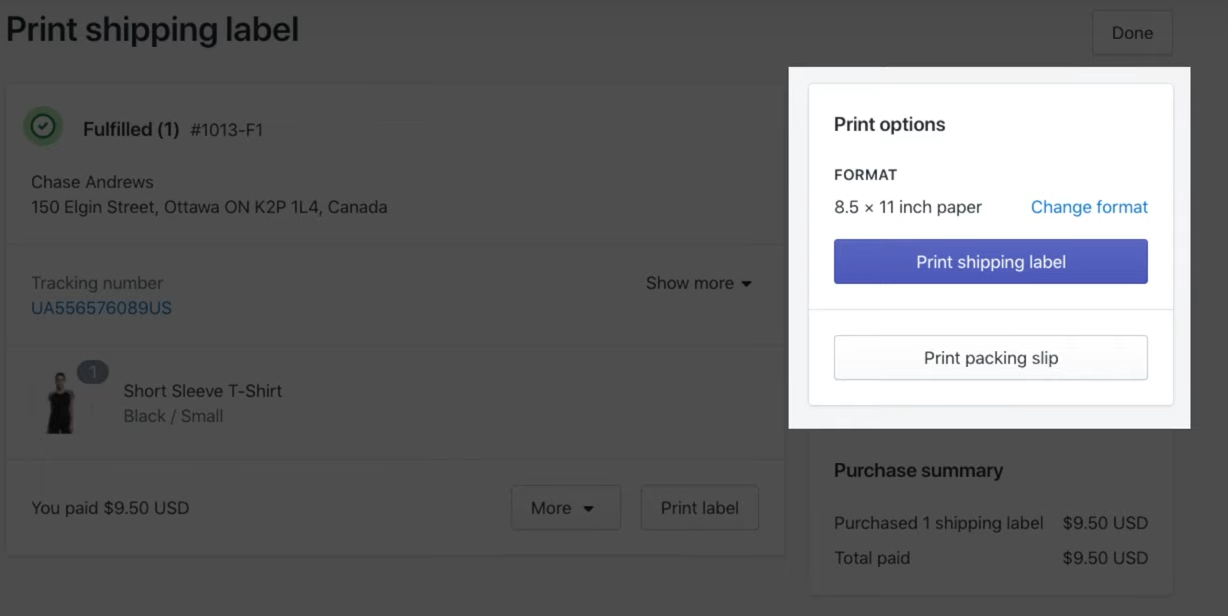
- Print the label and select your Rollo printer with a 4×6 paper size.
Source: Shopify Help Center: Buying and printing shipping labels
Label size or layout looks wrong? On a Mac, set 4x6 as the default label size for Rollo. If you get a full 8.5" x 11" page, see cropping a full-size page to a 4" x 6" label; for regular volume, Rollo Ship outputs a true 4x6 label. If the label comes out sideways, see My label is printing sideways.
Good to know
- Store outside the US or Canada? Rollo Ship requires a US or Canadian ship-from address, so use Option 2: buy your labels in Shopify and print them on your Rollo printer.
- Have a Rollo Wireless printer instead? Start with Rollo wireless printer setup and Can I print wirelessly?.
- Still stuck? Reach out to our support team on chat, and we will walk you through it.
Why shippers use Rollo Ship
- Free to start. Registering, downloading the app, comparing rates, connecting stores, importing orders and managing inventory are free. No credit card, Rollo printer purchase, contract, or minimum or maximum shipping volume.
- Built-in carrier discounts. USPS® and UPS® are built in for U.S. shippers, and Canada Post and UPS® are built in for Canadian shippers, with discounted rates. Connect your own FedEx® (U.S. and Canada) or Purolator® (Canada only) account at your own negotiated rates.
- No label fee on your first 200 labels. After that, it's 5¢ per label, down to 1¢ with Rollo Rewards. Postage still applies.
- Compare before you buy. See rates side by side and sort by best value, lowest price or fastest delivery.
- Print and ship anywhere. Labels print directly in 4x6 shipping label format on a Rollo printer, and Rollo Ship works with any compatible printer. Ship from your phone with the free Rollo app, or print over WiFi with a Rollo Wireless printer.
Quick links
- Connect Shopify to Rollo Ship
- Generate shipping labels with Rollo Ship on Rollo USB
- Setup Rollo for First Use
- Installing Rollo Driver on Windows
- Installing Rollo Driver on Mac
- Rollo Ship per-label fees explained
Ready to ship? Compare live rates and create your next shipment.
